
Definition
The Copy Role Assignment Widget allows to copy Role Assignments from one Identity to another.
This Widget is divided into 3 parts in order to:
-
search the source Identity (the one who has the Role Assignments)
-
search for Role Assignments to be copied
-
assign Role Assignments to the target Identity
Tips
To access the Copy Role Assignment Widget, you must configure the Widget on a Feature with an object kind set to IDENTITY.
To optimize the widget use, the best ways are to configure it in a dedicated Feature of type UI_FOR_OBJECT or in a Widget To Open.
Use
|
Description |
Examples |
|---|---|
|
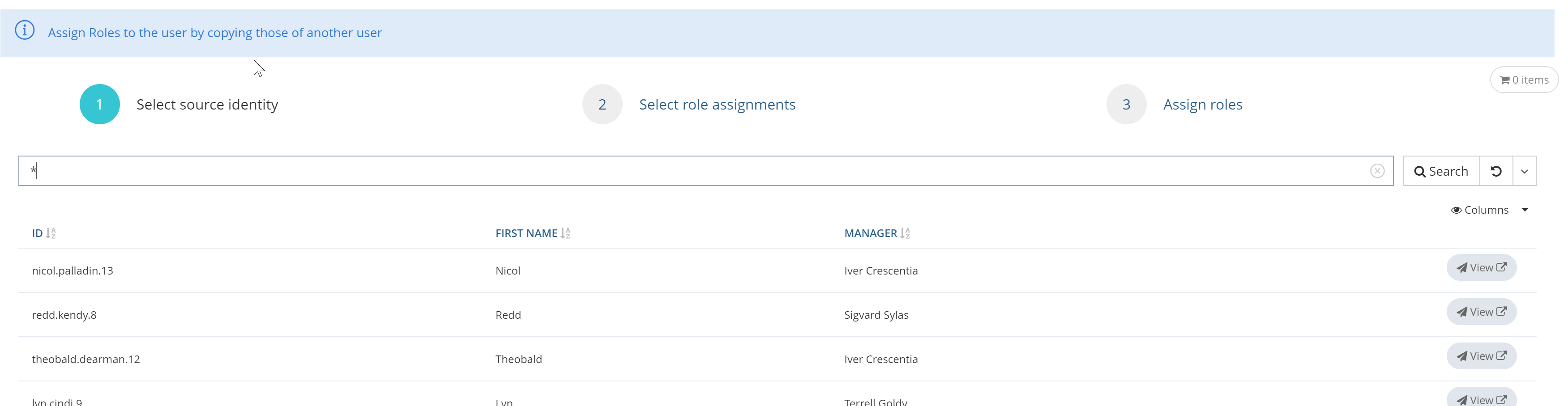
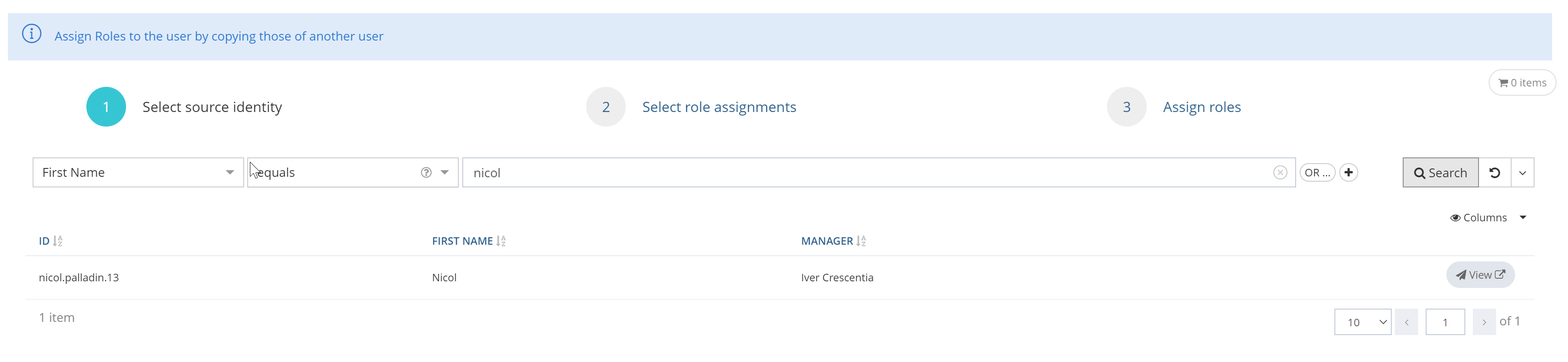
Search source Identity: a form allows to customize the search for the source Identity. Only searchable Attributes can be configured in this part. If the requesting user is not allowed to see an attribute (the confidentiality of the attribute is greater than the confidentiality allowed for the user), the attribute will not be searchable and will not be displayed in the result columns. A consistent list is displayed and the user can select one Identity by clicking on the corresponding line. Control
Translations The label "Select source identity" can be configured with this I18N key: "tenant.ui.component.copy-role-assignment.select-identity.label" On selection, the user is automatically redirected to the "Search Role Assignments" step. |
|
|
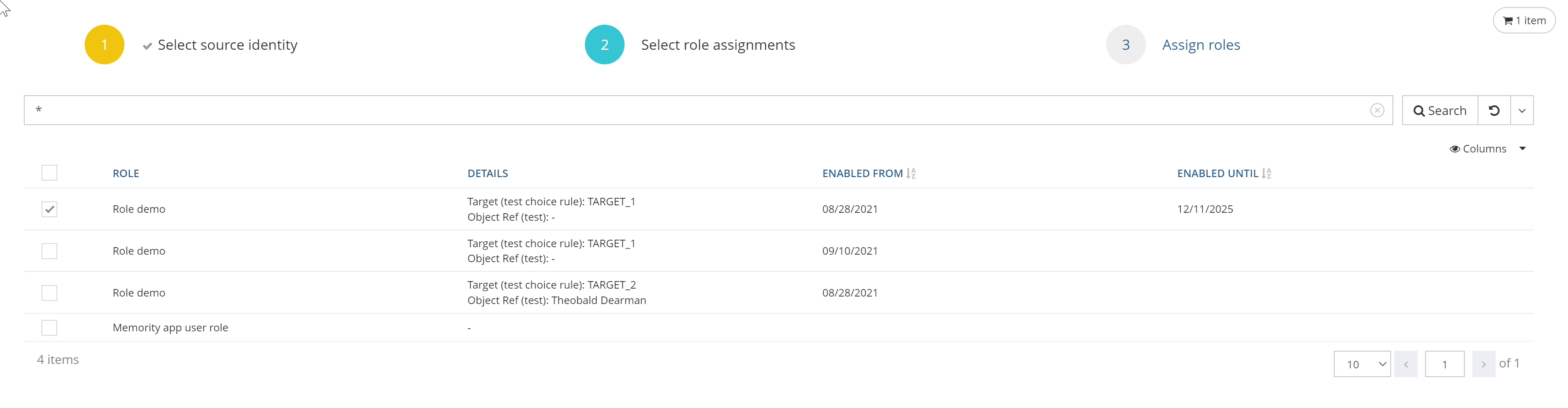
Search Role Assignments: a form allows to customize the search for the Role Assignments on the previously selected Identity. If the requesting user is not allowed to see an attribute (the confidentiality of the attribute is greater than the confidentiality allowed for the user), the attribute will not be searchable and will not be displayed in the result columns. Display & Navigation A Back button allows the user to return to the previous step. Translations The label "Select role assignments" can be configured with this I18N key: "tenant.ui.component.copy-role-assignment.select-assignments.label Click on the Continue button to access the following step." |
|
|
In the specific case of roles concerned by a SoD rule, after the click on the button a pop-up is displayed reminding the user of the SOD rules that are being applied. For each rule, the user has the option to deselect one or several of the affected role.
|
|
|
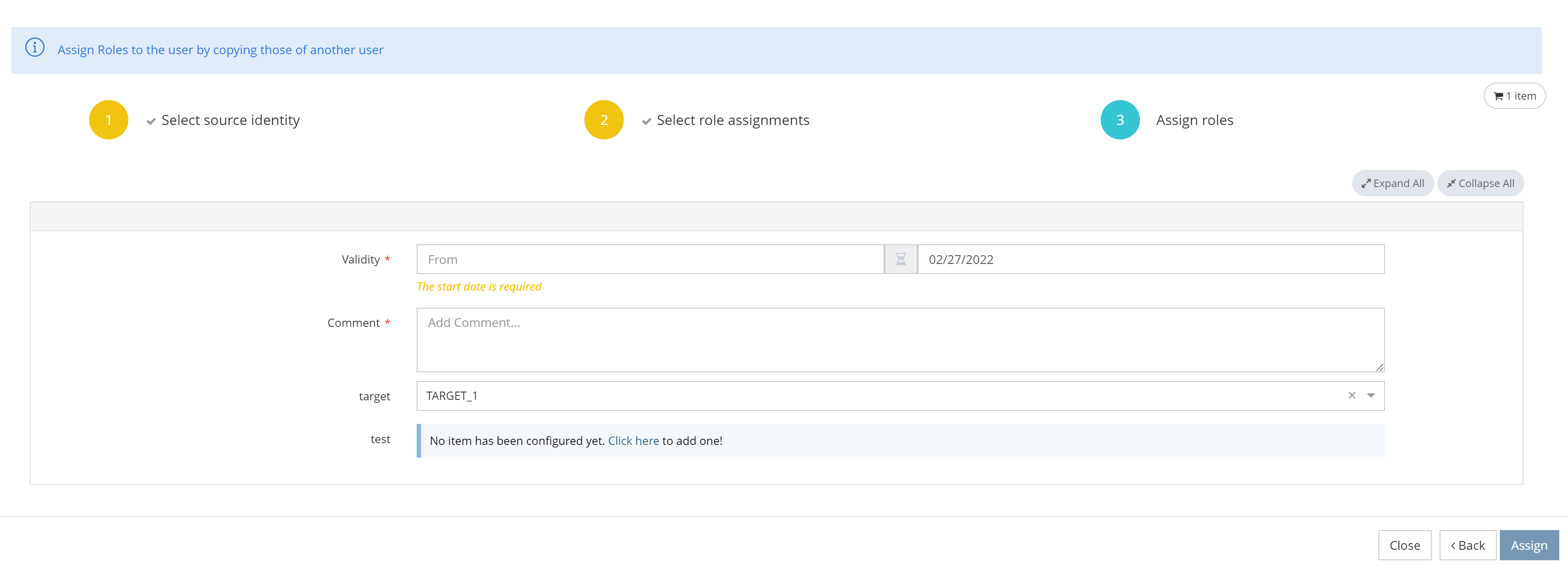
Assign Roles: this part allows to assign a copy of the selected Role Assignments to the target Identity (corresponding to the feature object id). If several Role Assignments have been selected, each Assignment is displayed in a dedicated frame. Display & Navigation A Back button allows the user to return to the previous step. Translations The label "Assign roles" can be configured with this I18N key: "tenant.ui.component.copy-role-assignment.assign-roles.label". Each dimension can be translated with these I18N keys:
Click on Assign button to assign the Role Assignments with their custom dimension values to the target Identity. A notification is displayed to indicate that the operation is done. |
|
Cart icon
-
The cart button is disabled if the cart is empty.
-
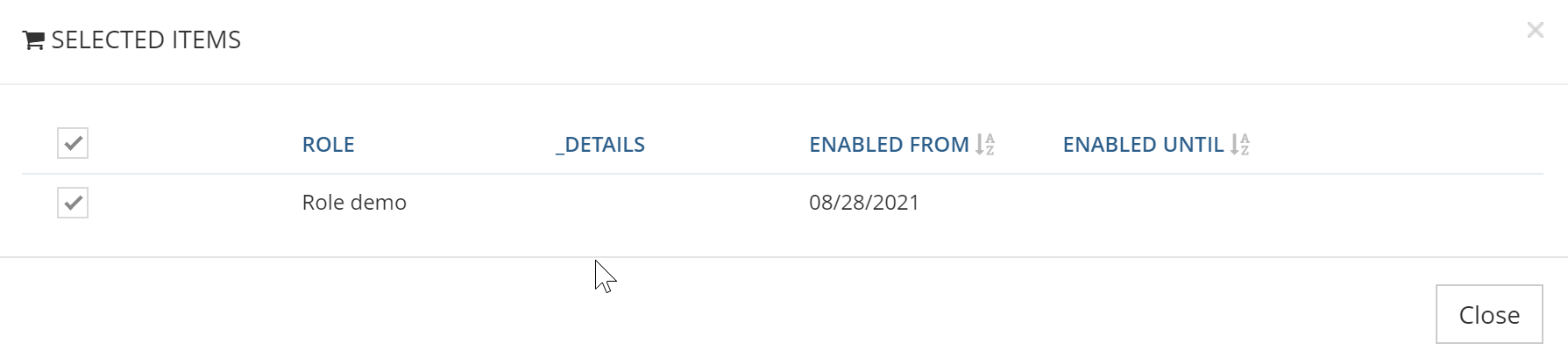
When a user chooses assignment(s) by clicking on checkboxes next to it, the cart icon will be updated with the number of selected Role(s).
-
The user can click on the "cart icon" button to display the selected Role Assignment(s).
-
The user can modify the selected Role Assignments in the cart by clicking on the checkboxes and validate by clicking on the "Apply changes" button.
Validity dates
Validity dates can be:
-
optional if no rule is configured on it.
-
mandatory, pre-filled and/or subjected to validation if any rules have been configured on the concerned Role Type. An asterisk is displayed next to the field and a message is displayed below the validity date in orange and italic.
You cannot choose validity dates before today's date.
The validity dates have an impact on the Role Assignment.
When you add an end date, the Role will be removed from the Identity one day after the chosen date.
The real date of deletion of the Role is visible when the mouse hovers over the end date on the Role dashboard.
The goal is to delete the Role at the end of the last authorized day.
|
Start date |
End date |
Status |
Impact |
|---|---|---|---|
|
Not valued |
Not valued |
ASSIGNED |
The Role is assigned directly. |
|
Not valued |
Valued (in the future) |
ASSIGNED |
The Role is assigned directly. The Role will be deleted when:
|
|
Valued (in the future) |
Not valued |
DELAYED |
The Role is not assigned because the start date has not passed. The Role will be assigned when:
The Role will never be deleted. |
|
Valued (in the future) |
Valued (in the future) |
DELAYED |
The Role is not assigned because the start date has not passed. The Role will be assigned when:
The Role will be deleted when:
|
Comment
The Comment is mandatory when assigning a Role to several Identities.
Configuration
Properties
|
Property name |
Type |
Mandatory |
Description |
Values (default value in bold) |
|---|---|---|---|---|
|
bordered |
|
NO |
Allows to display a border around the Widget. |
true, false |
|
title |
|
NO |
Allows to define a title and a subtitle. Title and subtitle are defined in the following i18n keys:
|
true, false |
|
validityRangeGranularity |
|
YES |
Allows you to define the precision used for the validity dates of a role:
|
DAY, HOUR |
|
identityOptions |
|
YES |
Contains all options related to the selection of the source Identity PropertyTypeDescriptionscopeObjectAllows to limit the search results.searchObject Same configuration as for a SearchWidget. <allowExport> tag is not applicable for this Widget. |
|
|
assignmentOptions |
|
YES |
Contains all options related to the selection of the Role Assignments |
|
Assignment properties
|
Properties name |
Type |
Mandatory |
Description |
Values (default value in bold) |
|---|---|---|---|---|
|
scope |
NO |
Allows to limit the search results. Default Scope status='ASSIGNED' AND source='MANUAL' |
- |
|
|
search |
|
NO |
Same configuration as for a SearchWidget <rowClickActions>, <actions> and <allowExport> tags are not applicable for this Widget |
- |
|
|
NO |
Allows you to configure field editors to be displayed (see Field Editors) These fields will be accessible when evaluating Role Request Policies and in workflows |
- |
fields Properties
|
Properties name |
Type |
Mandatory |
Description |
Values (default value in bold) |
|---|---|---|---|---|
|
field |
|
NO |
Allows you to configure field editors to be displayed (see Field Editors) These fields will be accessible when evaluating Role Request Policies and in workflows |
- |
Example
Read Next
-
Right Bindings Widgets Allows to edit and display Rights bound to Roles.
-
Role Bindings Widgets Allows to edit and display Roles bound to Super Roles.
-
Role Assignment Widget Allows to assign one ore several Roles to an Identity
-
Role Assignment Policies Widget Allows to configure and manage one or several Role Assignment Policies in order to assign Roles to several Identities.
-
Role Dashboard Widget Allows to display Role Assignments on an Identity and perform actions on Role Assignments (validity date, values of dimensions, update, revoke).
-
Role Dimensions Widgets Allows to edit and display Dimensions on Roles.
-
Role Request Widget Allows to manage the Role form on the Workflow user task.
-
Bulk Role Assignment Widget Allows to assign one Role to several Identities.
-
Copy Role Assignment Widget -
Role History Widget Allows to display Role Assignments history for an identity using point in time and search expressions.