A centralized view of a user’s roles assignment
Like all features in Memority, the user role management features can be customized according to the customer's needs. We could present the user's assignments by differentiating them according to the type of role, as will be the case in the example below, or differentiate them by the mode of assignment (manual or automatic) or mix the two options.
In the example below we will have a functionality centered on the roles of the user with for each type of role:
-
A button to add a role of this type to the user (see previous chapter on Manual assignment)
-
And a role dashboard, to visualize all information about role assignments of a user, and act on them
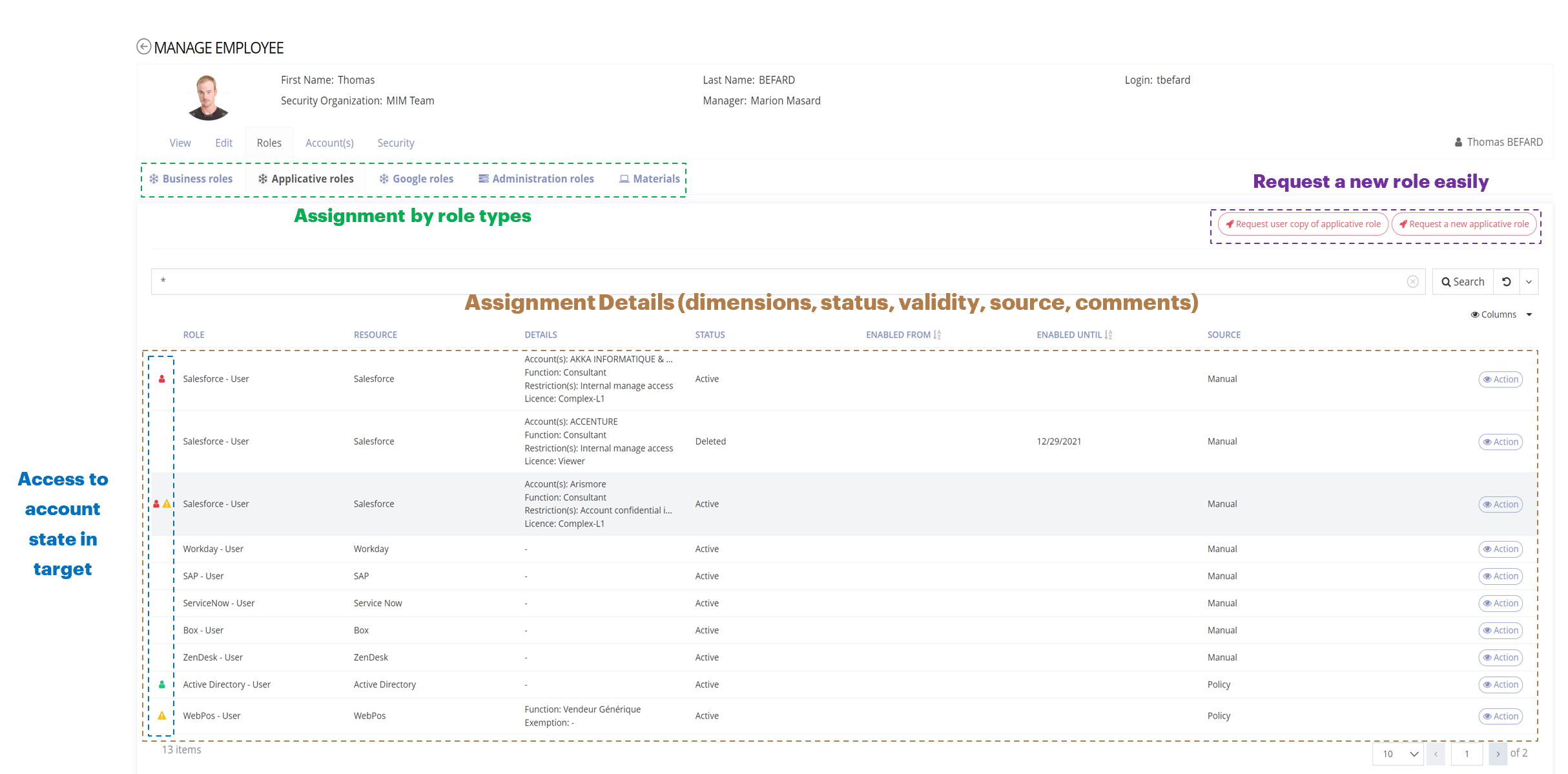
The role dashboard allows to view for each of the user's assignment:
-
the resource, most often the application to which the role assignment is attached
-
details, any information about assignment configured to be displayed, most often dimension values
-
the status of the assignment, so you can see in the dashboard the active roles but also the roles that the user had at one time and lost since.
-
the validity period if the role has only been assigned for a given period
-
the source meaning how the role was given to the user, manually or automatically by policy
-
the state in target, if a provisioning is in place for the application to which the role is attached, an icon indicating the state of the account in the target is displayed (red if the account is missing in the target, orange if the account is present but not up to date in the target and green if the account is correctly synchronized with the target)
The visualization of the state in the target can be displayed or hidden in feature configuration, if not pertinent for certain type of role for example (without provisioning).
An easy way to act on a role assignment
In addition to viewing the user's roles, the dashboard also allows an administrator to view more details about the assignment or to act on an assignment with an action button.
Thus, after clicking on the action button, a modal will open allowing the administrator:
-
Have information about the selected assignment (status, validity period, comment, and dimension valuation) and be able to Act on the role assignment, i.e. update the assignment (modify the values of the dimensions, modify the validity period) or revoke it.
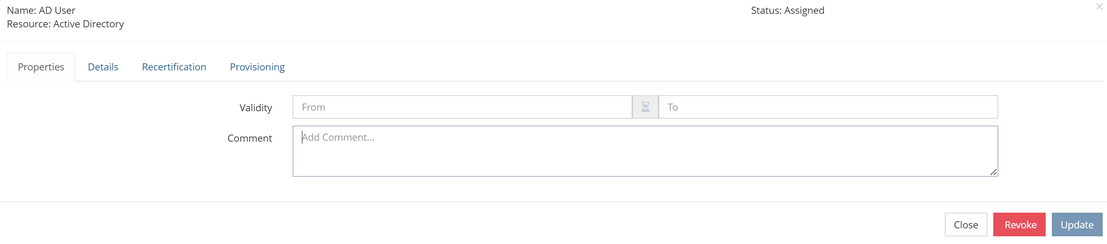
The action buttons Update or Revoke will only be displayed when the connected user have the right to act on the assignment (see Request strategies chapter).
-
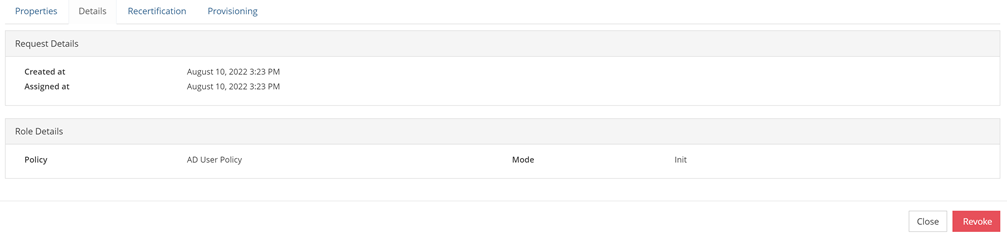
Have additional details about the assignment (date of assignment, information about the assignment method, the role requester, if the role has been copied from another identity's roles ....)
-
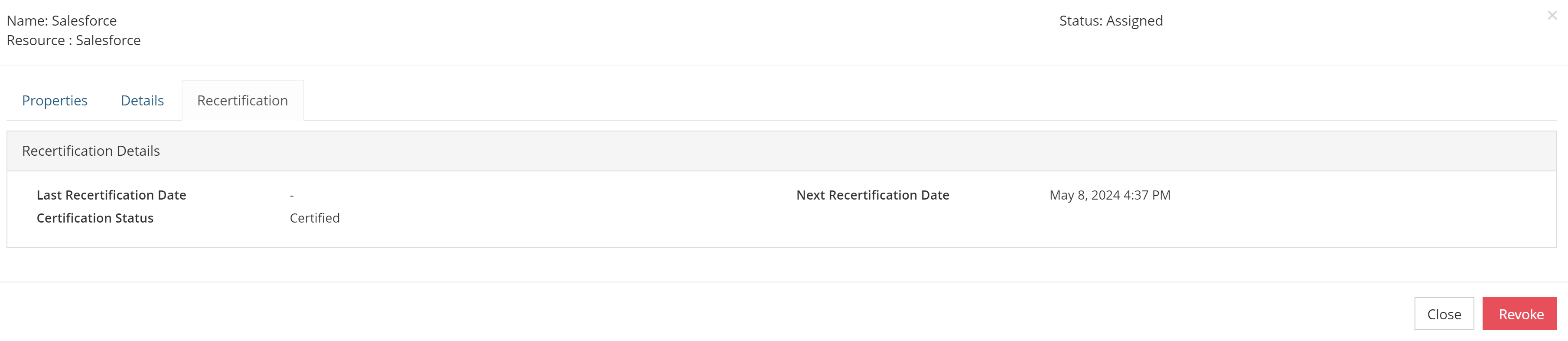
View recertification campaigns information for this role and identity (date of last recertification, status and date of next campaign)
-
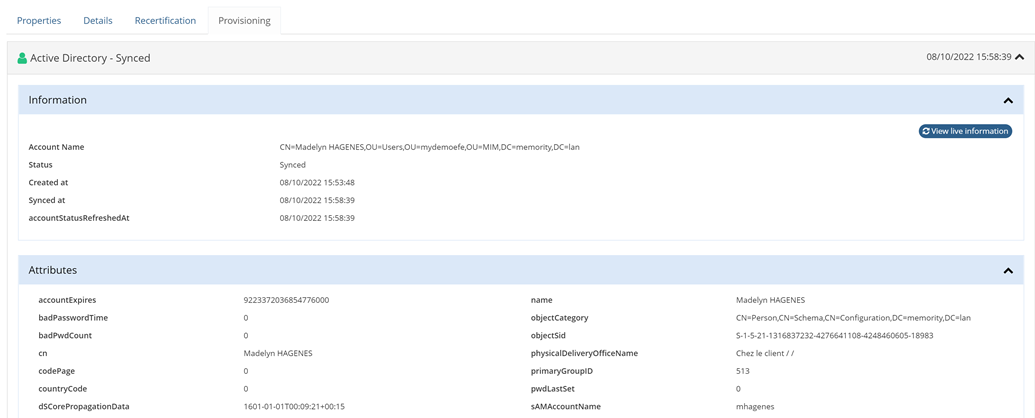
In case the application is provisioned, see in real time the status of the account in the target with the provisioned attributes and be able to restart the synchronization if the account is not up to date in the target.