
The Workday Synchronization plugin will be available with the release of the Memority Integration Tool (MIT) 3.0.0.
Memority's REST connector can import identities from a Workday tenant through the Workday Human Resources SOAP API. The prerequisites below must be configured before the synchronization runs.
This page explains how Workday synchronization works in Memority and the prerequisites required to import workers from Workday.
Generic REST connector prerequisites are explained on the REST provisioning page.
Definitions
What Workday objects can be imported ?
The connector imports Worker objects. Both Employee and Contingent_Worker worker types are imported.
Can custom attributes be imported ?
Yes, through Workday Integration Field Overrides. This is disabled by default and requires configuration on the Workday side.
Can Memority provision accounts back to Workday ?
No. The connector only imports identities into Memority. It does not create, update or delete workers in Workday.
Memority REST connector
Workday authentication prerequisites
Memority connects to Workday with a dedicated Integration System User (ISU). The connector sends the ISU user name and password in each SOAP request, protected by HTTPS. The procedure below explains how to configure this in Workday.
|
Step |
Screenshot |
|
|---|---|---|
|
1 |
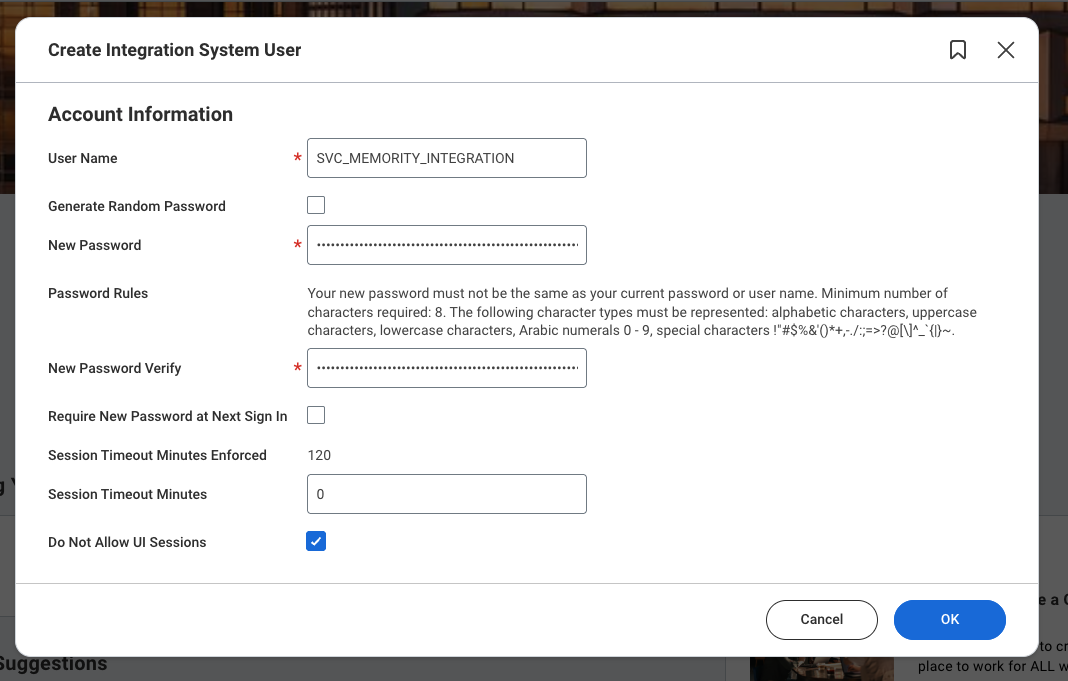
Create the Integration System User (ISU). In the Workday search bar, type "Create Integration System User". Set User Name (for example SVC_MEMORITY_INTEGRATION), generate a strong password, clear Require New Password at Next Sign In and select Do not allow UI sessions. Click OK, then Done. |
Create Integration System User — Workday
|
|
2 |
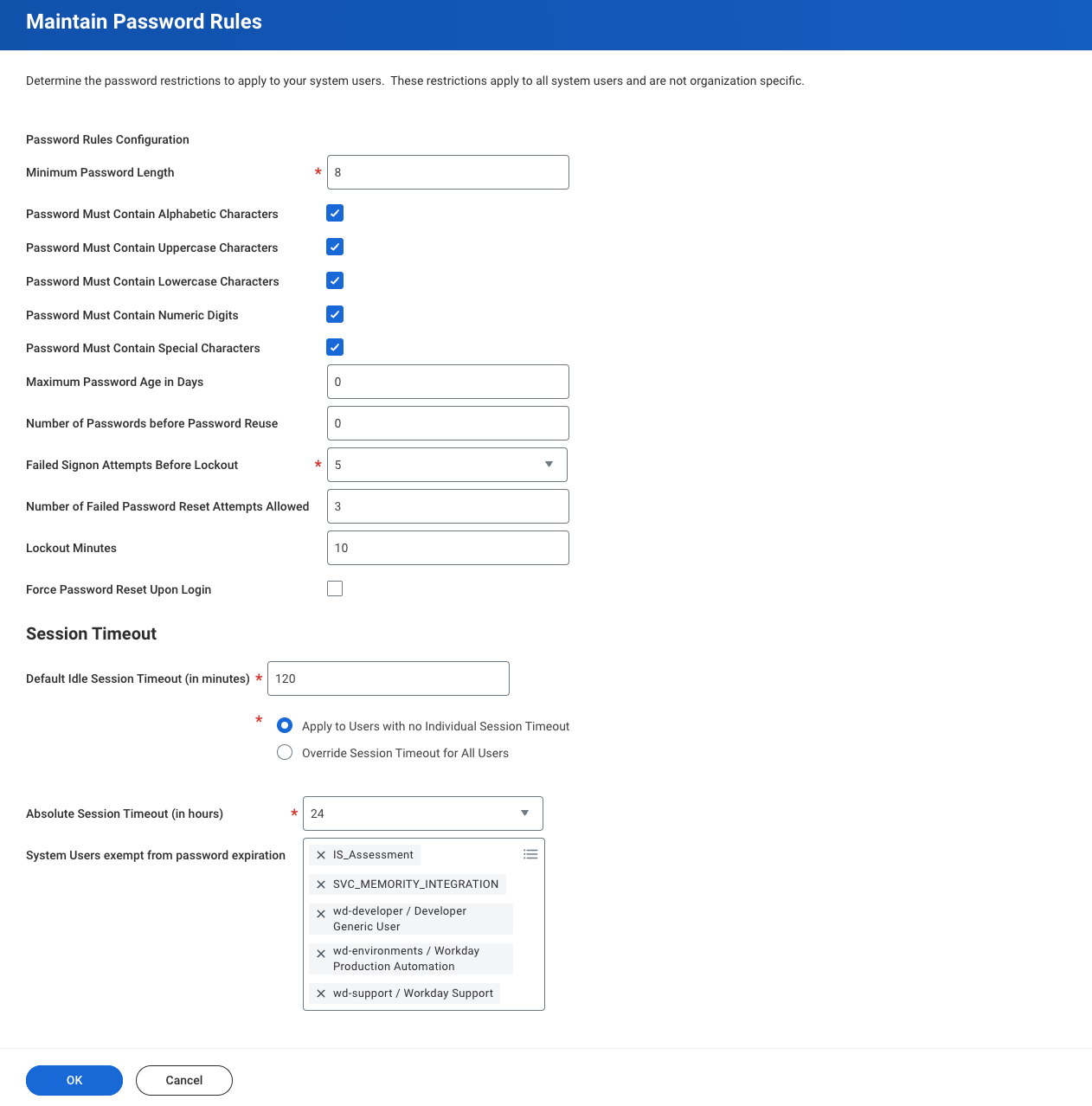
Exempt the ISU from password expiration. In the Workday search bar, type "Maintain Password Rules". In System Users Exempt from Password Expiration, click Edit, add the ISU, then click OK and Done. |
Maintain Password Rules — password expiration exemption
|
|
3 |
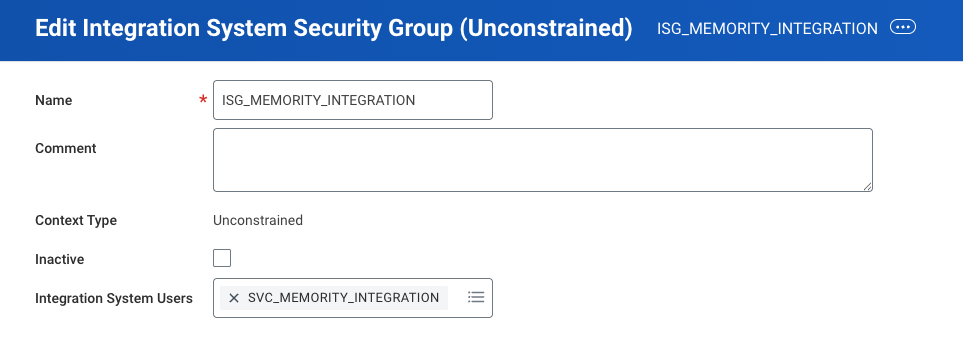
Create the Integration System Security Group (ISG). In the Workday search bar, type "Create Security Group". Select Integration System Security Group (Unconstrained) and set Name (for example ISG_MEMORITY_INTEGRATION). In Integration System Users, search for the ISU by its exact name (for example SVC_MEMORITY_INTEGRATION) and select it. Click OK, then Done. |
Edit Integration System Security Group (Unconstrained) — ISG_MEMORITY_INTEGRATION
|
|
4 |
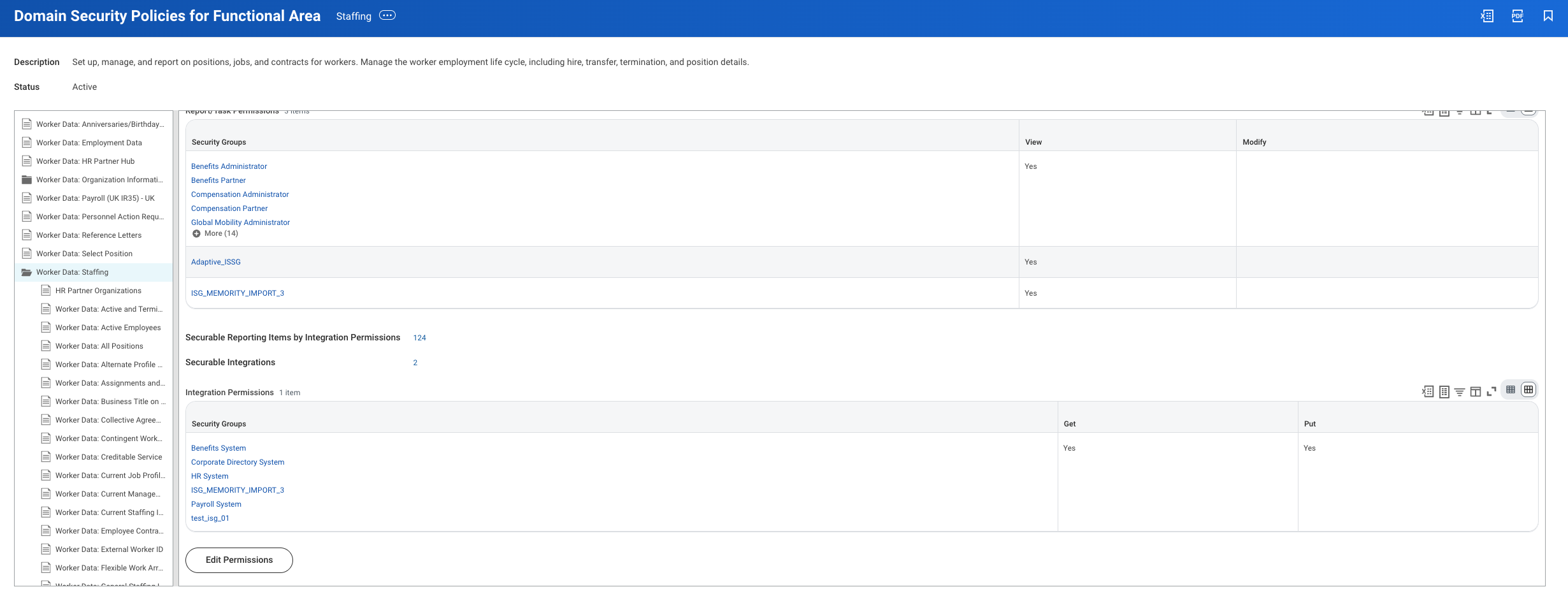
Grant Get access on the required security domains. In the Workday search bar, type "Domain Security Policies for Functional Area". For each domain below, select the matching functional area, click the domain to open it, then click Edit Permissions. Add ISG_MEMORITY_INTEGRATION with Get in the Integration Permissions section, then click OK and Done. See the list of domains below this table. |
Domain Security Policies for Functional Area: Staffing — Edit Permissions
|
|
5 |
Activate the pending security policy changes. In the Workday search bar, type "Activate Pending Security Policy Changes". Add a comment and click OK. This step is mandatory: Workday does not apply permission changes until they are activated. |
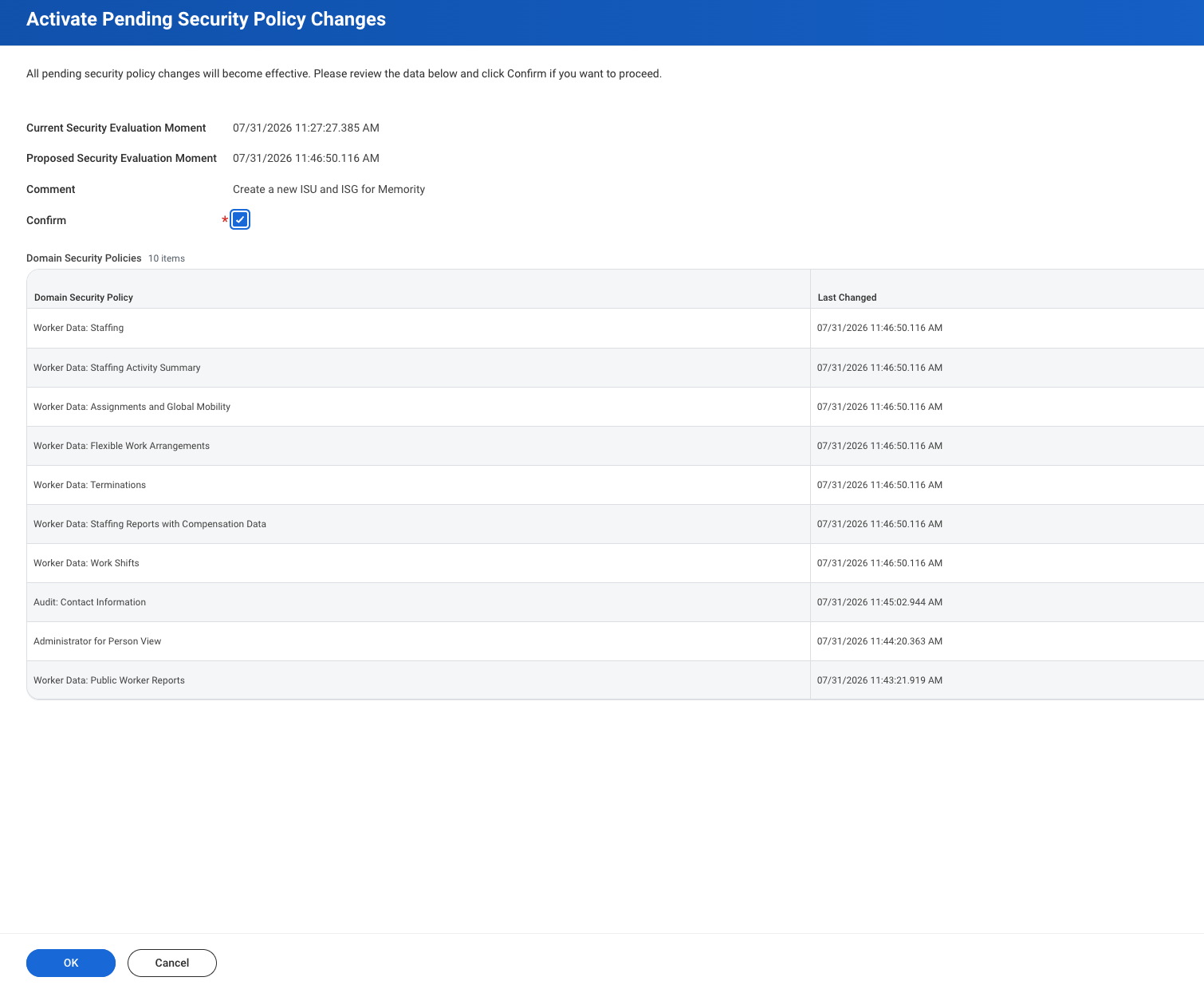
Activate Pending Security Policy Changes — confirmation screen
|
|
6 |
Configure Integration Field Overrides (optional). Only required for custom attributes. See Configuring Integration Field Overrides below. |
|
Domains to configure in step 4:
|
Domain |
Functional area |
Why it is needed |
|---|---|---|
|
Worker Data: Staffing |
Staffing |
Base worker data. Also add View in the Report/Task Permissions section. |
|
Worker Data: Public Worker Reports |
Staffing |
Required for basic Get_Workers access. |
|
Worker Data: Employment Data |
Staffing |
Required for Include_Employment_Information. Exposes Hire_Date and the employment status. |
|
Worker Data: All Positions |
Staffing |
Exposes Worker_Job_Data and Position_Data. |
|
Administrator for Person View |
Personal Data |
|
|
Person Data: Personal Information |
Personal Data |
Required for Include_Personal_Information. |
|
Audit: Contact Information |
Contact Information |
Required for contact data. |
Configuring Integration Field Overrides (optional)
This section depends on how custom attributes are stored in your Workday tenant (custom objects, extended data or standard field references). Adapt the exact steps with your Workday administrator.
The general approach is:
-
Create a calculated field on the Worker business object that returns the value of the custom attribute.
-
Create an Integration Field Override Service and map the field to an XML tag name (for example TEST_CUSTOM).
-
Create an integration system, note its ID, and link it to the Field Override Service.
-
Open Configure Integration Field Overrides and map each calculated field to its tag name.
-
In Memority, configure the
sync.connectors.import-workday-<identityType>.integrationSystemIdsetting, and update the application and SOAP connector files in IntelliJ accordingly.
Workday Synchronization plugin
Memority provides a plugin in the MIT Plugin Store that configures the Workday Synchronization connector. The plugin generates all the configuration files that your tenant needs.
Prerequisites
In addition to the common plugin prerequisites, this plugin requires:
|
Prerequisite |
Description |
|
|---|---|---|
|
1 |
Workday tenant configured |
Workday must be configured as explained above. |
|
2 |
Existing identity type |
The plugin imports workers into an identity type that must already exist (for example |
Installation
The plugin is installed with the standard procedure described on the Memority Plugins page. This section only gives the information that is specific to the Workday Synchronization plugin.
Installation mode: repeatable with distinct values. You can install the plugin once per identity type: each installation requires a different Identity Type ID.
Plugin form parameters
|
Parameter |
Description |
Example |
|---|---|---|
|
Identity Type ID |
Identifier of the existing identity type that receives the imported workers. Lowercase letters (a-z) only. Identity types whose identifier contains other characters (for example uppercase letters) are not supported. |
employee |
|
Workday service URL - Preprod |
URL of the Workday Human Resources service for preprod. |
https://wd2-impl-services1.workday.com/ccx/service/<tenant>/Human_Resources |
|
Workday service URL - Prod |
URL of the Workday Human Resources service for prod. |
https://wd5-services1.workday.com/ccx/service/<tenant>/Human_Resources |
Workday service URL format:
-
https://<host>/ccx/service/<tenant>/Human_Resources(no trailing slash) -
Typical hosts : implementation (e.g.
wd2-impl-services1.workday.com), production (e.g.wd5-services1.workday.com)
Check your tenant’s WSDL URL or ask your Workday administrator to confirm the correct base host.
ISU credentials
The ISU credentials are not requested by the form. Create them manually in the Memority administrator portal, for both preprod and prod. Go to System → Settings → Synchronization Service and create a setting of type CREDENTIAL: api.vault.sync.soap.workday.credentials (principal: user name of the ISU, secret: its password).
This setting is shared by all the installations of the plugin on the tenant, whatever the identity type.
Data import
The plugin generates no data files. Step 10 of the standard procedure does not apply.
What does it do ?
The generated configuration works out of the box, but it may need adjustments for specific client needs.
The plugin generates the complete configuration required for Workday synchronization in just a few clicks.
It imports workers from Workday HCM with the Get_Workers SOAP operation. The data model includes the Workday ID, first name, last name, work email, hire date, termination date and manager (see Imported data reference). You can extend it if needed.
The plugin supports:
-
Import of
EmployeeandContingent_Workerworker types. By default, both types are imported. You can restrict the import to a single worker type in the connector definition file. See Scoping the import. -
Paginated
Get_Workersrequests. The default page size is 50 workers. You can increase it up to the limit allowed by your Workday tenant, depending on the volume of data retrieved. -
Manager reference resolution. The synchronization task is preconfigured with sortInputData = true to process entries in the correct hierarchical order, both for the initial import and for the following runs.
-
Workday Integration Field Overrides for custom attributes, disabled by default. See Configuring Integration Field Overrides.
-
Full and incremental (delta) import. Both modes are generated.
Choosing full or delta mode
The plugin generates two connectors and two synchronization tasks, so that you can run a full import and an incremental (delta) import independently:
|
Files |
Mode |
|---|---|
|
|
Always performs a full import (no transaction log filter). |
|
|
Performs a delta import, using Workday Transaction Log criteria between the last successful run and now. |
By default, both tasks run manually. You can adjust each schedule independently, or disable one of the two tasks if you need only one mode.
Scoping the import (filters)
You can limit which workers are imported by editing the SOAP request criteria in the connector definition files:
-
Worker type filter: to restrict the import to a single worker type, set the matching flag to true in the Request_Criteria block of the connector definition:
-
Exclude_Contingent_Workers set to
trueimports employees only; -
Exclude_Employeesset totrueimports contingent workers only.
Both flags are present and set tofalseby default, so all worker types are imported.
-
-
Country filter: uncomment the
Country_Referenceblock in the connector to restrict the import byOPM_Country_Code(for example US, FR). -
Custom attributes (Integration Field Overrides): uncomment the
Integration_System_IDblock, set thesync.connectors.import-workday-<identityType>.integrationSystemIdsetting, then map the additional attributes in the application file.
The country filter and custom attribute snippets are commented out in both import-workday-<identityType>-soapConnector.xml and import-workday-<identityType>-soapConnector-full.xml. Enable them as needed.
Imported data reference
|
Workday field |
Shadow attribute |
Memority attribute |
Notes |
|---|---|---|---|
|
Worker_ID |
workdayId |
workdayId |
Correlation key |
|
First_Name |
firstName |
firstName |
Legal name |
|
Last_Name |
lastName |
lastName |
Legal name |
|
Email_Address (work) |
|
|
Work email |
|
Hire_Date |
activationFrom |
activationFrom |
Converted to midnight in the tenant time zone |
|
Termination_Date |
activationUntil |
activationUntil |
Termination_Date + 1 day (the last worked day is inclusive in Workday and exclusive in Memority) |
|
Manager_Employee_ID |
manager |
manager |
IDENTITY_REF, resolved against identities already imported |
|
Custom override value |
Tenant-specific |
Tenant-specific |
Requires Integration Field Overrides. See the comments in the connector and application files. |
Technical details
<identityType> in the generated file names is replaced by the Identity Type ID entered in the plugin form.
Generated files
|
File |
Path |
Description |
|---|---|---|
|
|
|
Workday ID attribute definition |
|
|
|
SOAP connector for Get_Workers (delta mode). CREATE, PATCH and DELETE are no-ops. |
|
|
|
SOAP connector (full mode) |
|
|
|
Links the connector with the application mapping (delta mode) |
|
|
|
Links the connector with the application mapping (full mode) |
|
|
|
Schema mapping, correlation and reactions (delta mode) |
|
|
|
Schema mapping, correlation and reactions (full mode) |
|
|
|
Synchronization task (delta mode) |
|
|
|
Synchronization task (full mode) |
|
|
|
Base URL of the Workday Human Resources service |
|
|
|
Workday API version (for example v46.0) |
|
|
|
Optional integration system ID (for custom attributes) |
|
|
|
Reminder file for the ISU credentials to configure in the administrator portal (type CREDENTIAL) |
Updated files
|
File |
Path |
Description |
|---|---|---|
|
|
|
Adds the workdayId attribute |
|
|
|
Adds the Workday SOAP hosts to whitelist |
|
|
|
Adds the Workday environment variables |
|
|
|
Adds the Workday environment variables for preprod |
|
|
|
Adds the Workday environment variables for prod |
Enabling custom attributes after installation
Custom attributes are disabled by default. Configure them as described in Configuring Integration Field Overrides.
Troubleshooting
Client.authenticationError or "Invalid credentials"
-
Cause: The ISU credentials are incorrect, or the Require New Password at Next Sign In option is still selected on the ISU account in Workday.
-
Fix: Check the credentials stored in the api.vault.sync.soap.workday.credentials setting, and check the ISU configuration in Workday.
"The task submitted is not authorized" on Get_Workers
-
Cause: The ISU authenticates successfully, but the Integration System Security Group does not have Get access on the required domain security policies, or the pending security policy changes have not been activated.
-
Fix: Review the domain permissions of the ISG and run Activate Pending Security Policy Changes in Workday.
SOAP-ENV:Client.validationError: Invalid Subelement in Response_Group
-
Cause: A flag in the Response_Group block is not supported by the configured API version, or is explicitly set to false. The Workday schema does not accept false values for Response_Group flags.
-
Fix: Remove the flag instead of setting it to false.
Custom override data is missing in the response
-
Cause: The calculated field is not mapped in the Integration Field Override configuration, or the Value cell in Configure Integration Field Overrides is empty.
-
Fix: Map the calculated field to the declared tag name, then activate the pending security policy changes again in Workday.
No workers are imported
-
Cause: The synchronization task is not running, or the target identity type does not exist in Memority. If the identity type is missing, the import task fails silently.
-
Fix: Check the identity type ID entered in the plugin form, and check the synchronization task logs in the Memority administrator portal.