
Definition
Microsoft Entra ID lets you delegate multi-factor authentication (MFA) to an external authentication provider through External Authentication Methods (EAMs). This page explains how you configure Memority as such a provider: your users complete the first factor on Entra ID and the second factor on Memority.
Memority acts as the OpenID Connect (OIDC) provider, and Entra ID acts as the OIDC client. You configure the integration on both sides:
-
On Microsoft Entra ID, you register an application and declare Memority as an external authentication method.
-
On Memority, you create an OAuth2/OIDC federation for Entra ID, then define the AMR and ACR mappings.
Microsoft reference: Manage an external authentication method in Microsoft Entra ID
Prerequisites
Before you start, make sure that you have:
-
A Microsoft Entra ID tenant, and an account with administrator privileges on this tenant.
-
A Memority tenant, with its Access Management host (
<AM_HOST>) and its tenant name (<TENANT>). -
At least one strong authentication method available for the target users, and an authentication level that identifies it.
-
A claim that correlates both identities. The claim that Memority extracts from the
id_token_hint(for examplepreferred_username) must match the login of an existing Memority user.
Configuration
Step 1: Register an application in Microsoft Entra ID
-
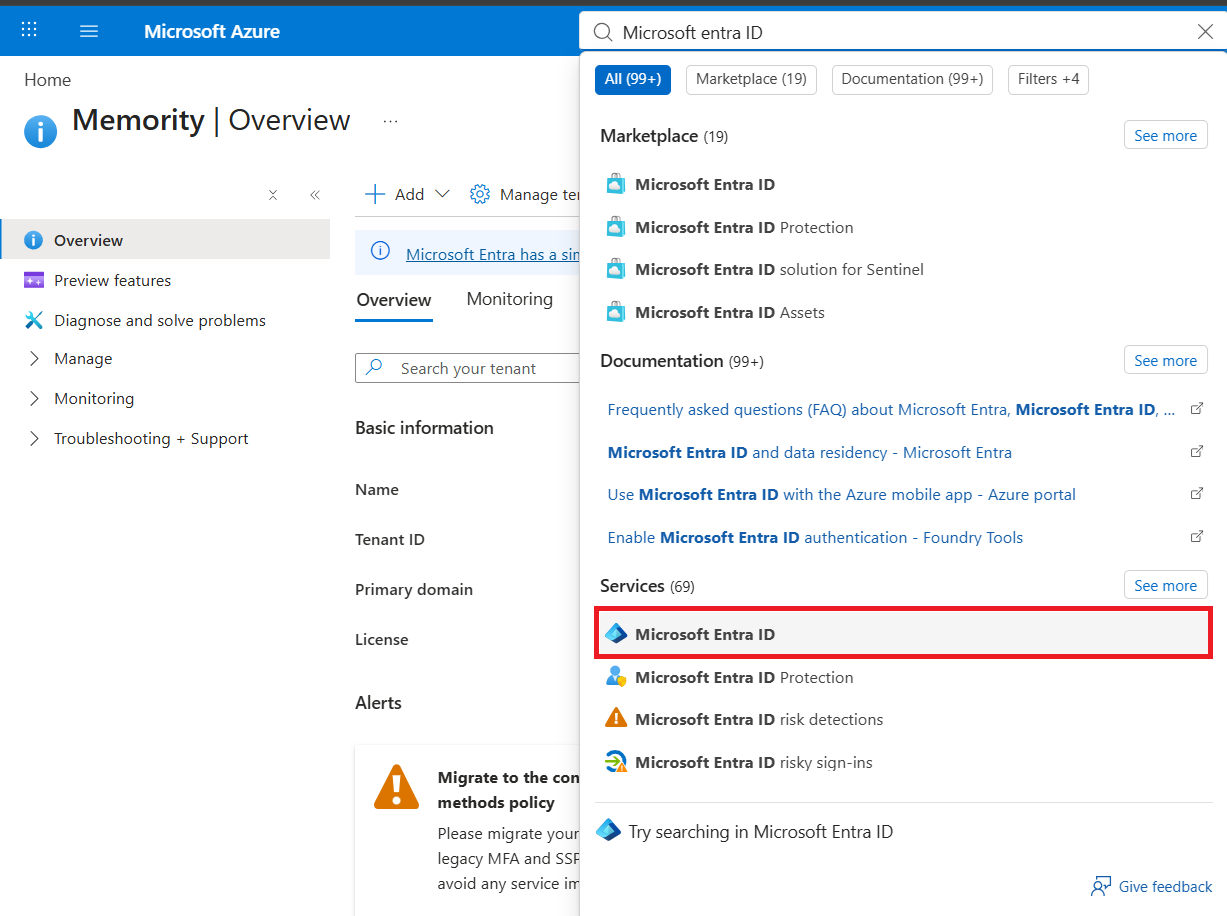
Go to https://portal.azure.com , search for Microsoft Entra ID, then select the entry under Services.
-
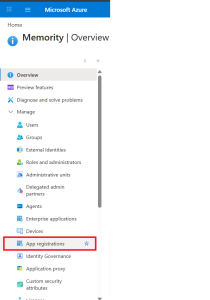
In the left menu, under Manage, select App registrations.
-
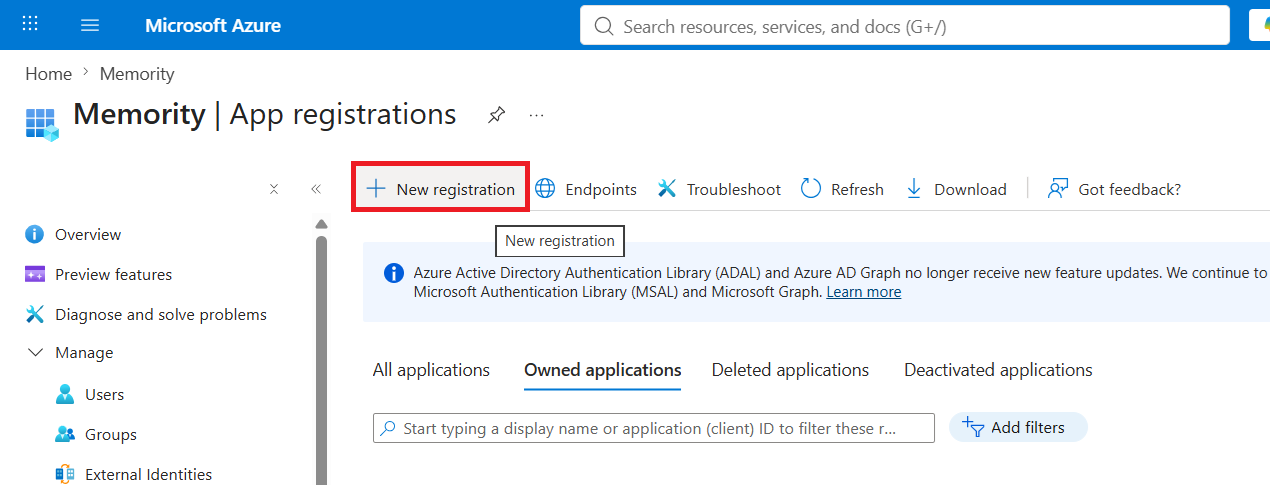
Select New registration.
-
Enter a name, then set a Web redirect URI that points to the authorize endpoint of your Memority tenant:
https://<AM_HOST>/sso/v2/oauth2/<TENANT>/authorize -
Select Register. Entra ID adds the application to the All applications tab.
Copy the Application (client) ID of the registered application. You will use it as the Client Id of the Memority federation in step 3, and as the Client ID and App ID of the external authentication method in step 2.
Step 2: Add Memority as an external authentication method
Microsoft reference: Create an EAM in the admin center
-
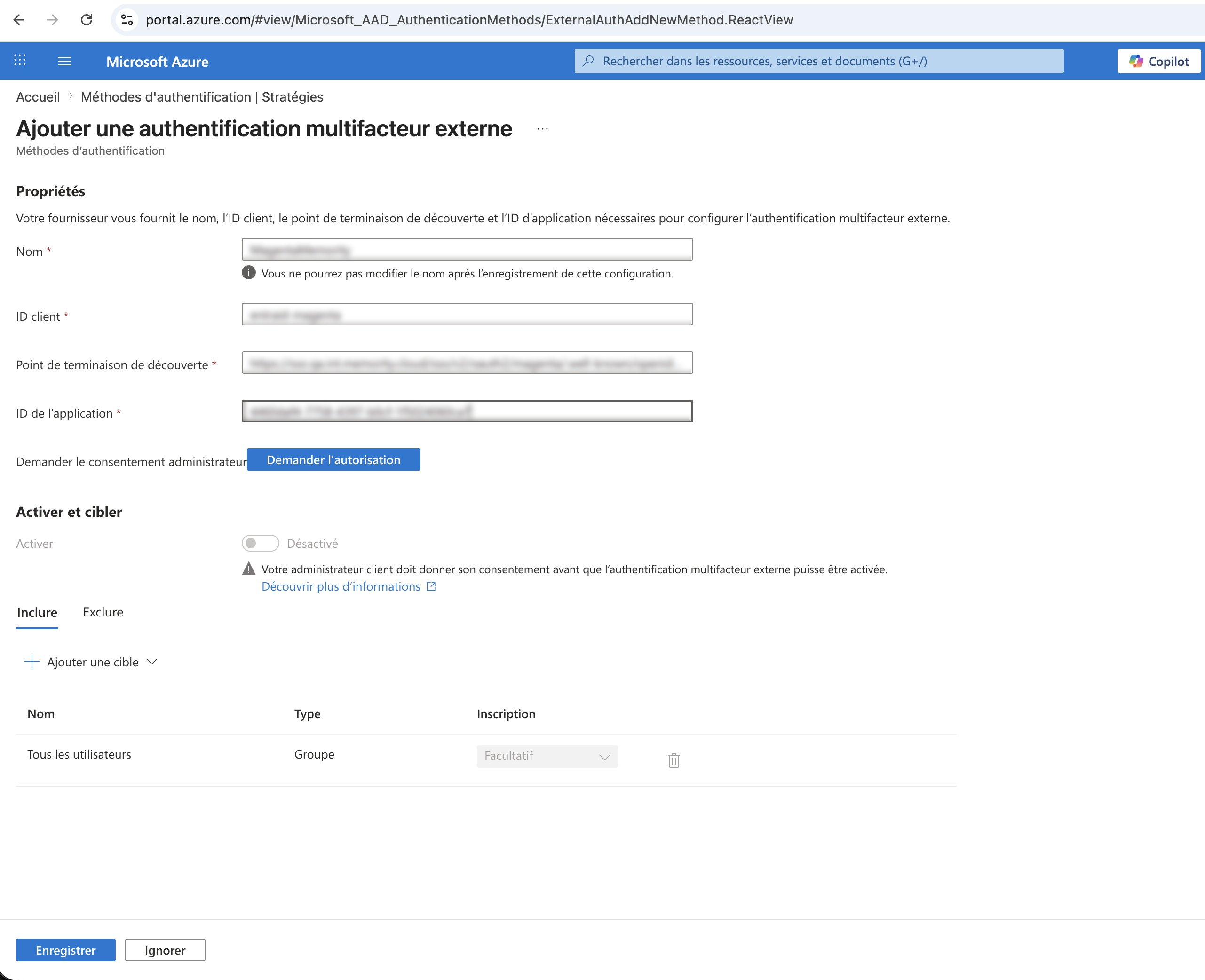
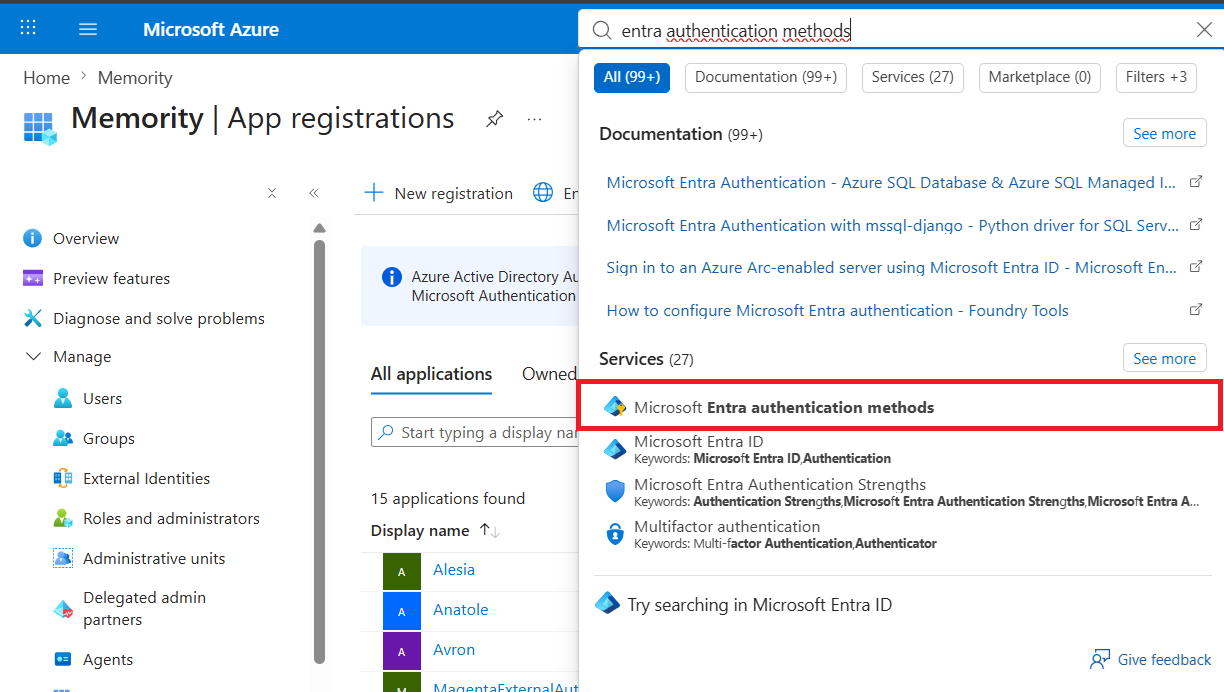
Open the Microsoft Entra authentication methods menu.
-
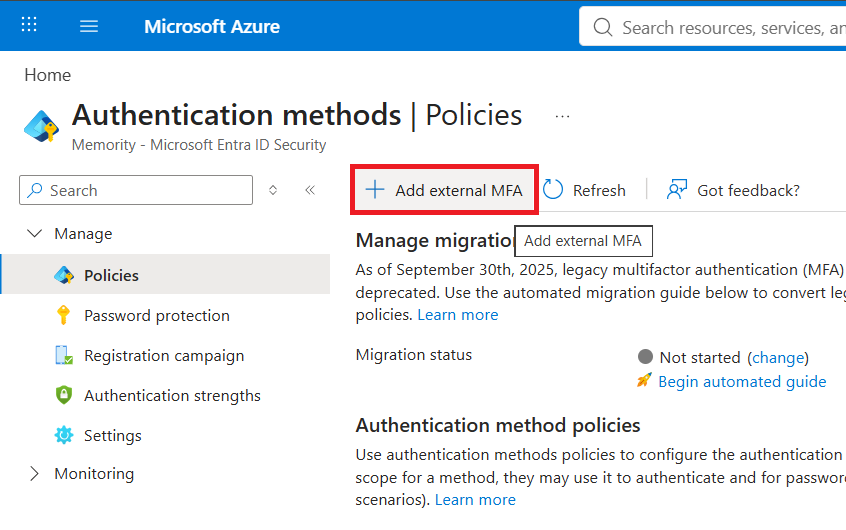
Select Add external MFA in the left sidebar, under Policies
-
Fill in the following properties:
|
Property name |
Mandatory |
Description |
Comments |
|---|---|---|---|
|
Name |
YES |
Display name of the external MFA method. |
For example |
|
Client ID |
YES |
Identifier of the OIDC client. |
Use the Application (client) ID from step 1. |
|
Discovery endpoint |
YES |
Well-known endpoint of the Memority tenant. |
|
|
App ID |
YES |
Identifier of the registered application. |
Use the Application (client) ID from step 1. |
-
Select Request permission, then sign in with an Entra ID account that has administrator privileges.
-
Accept the requested permissions.
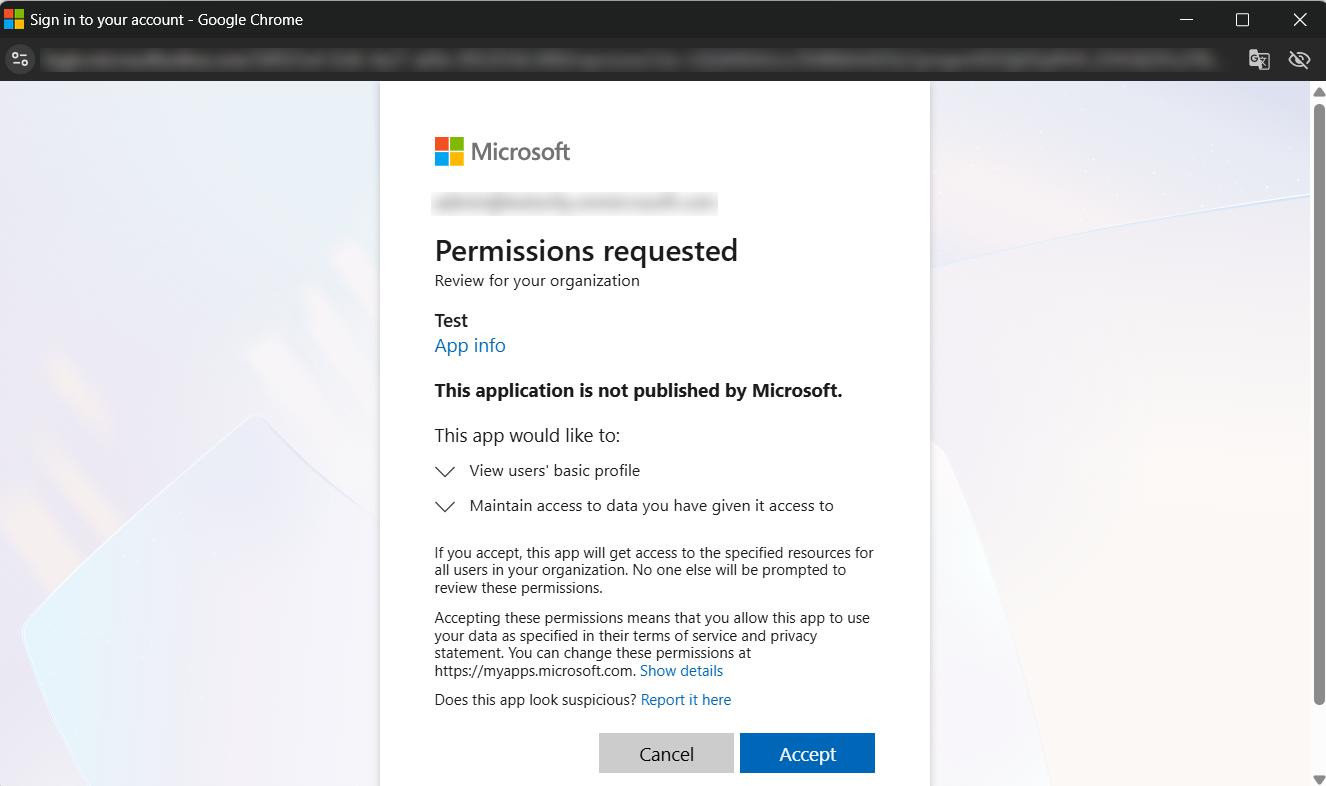
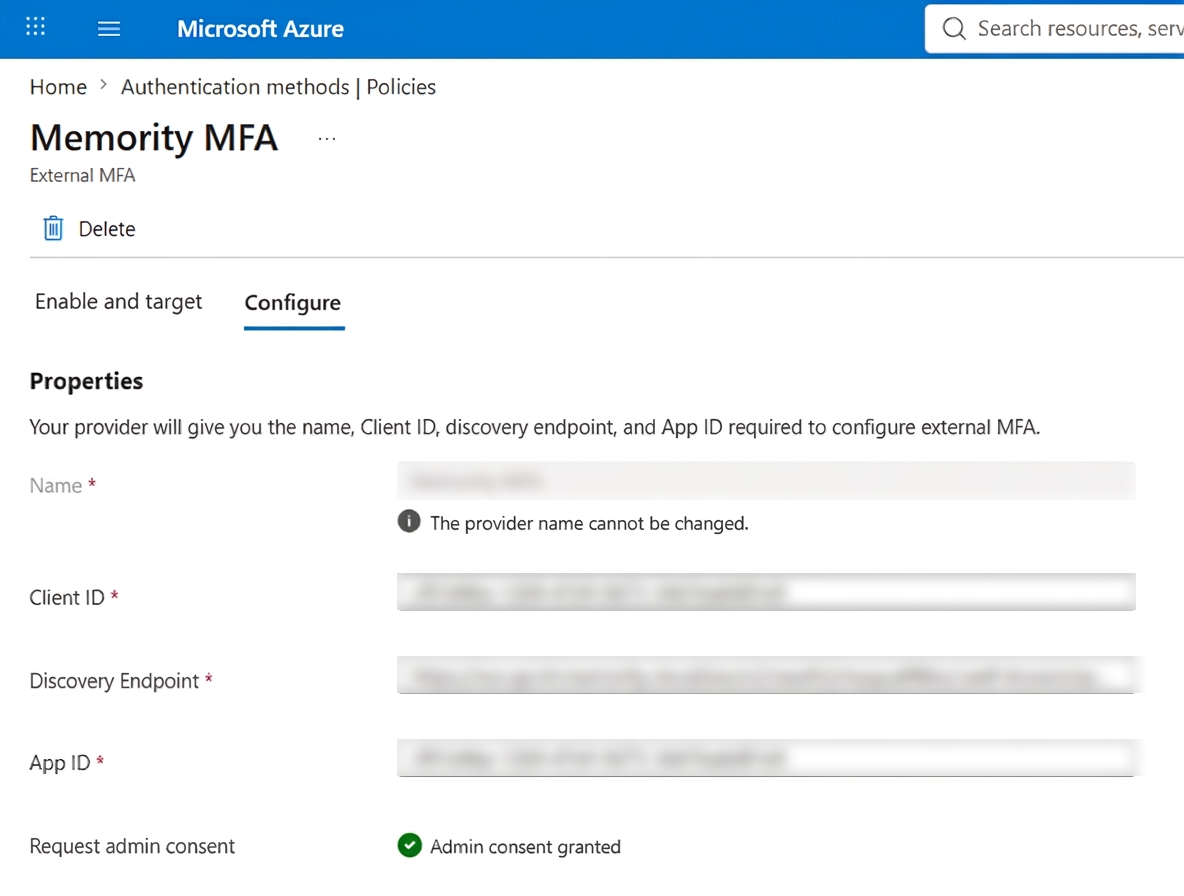
Entra ID can display an error message even though it grants the permission. Check the bottom of the configuration screen, under External: if the permission appears as granted, select Save and continue.
-
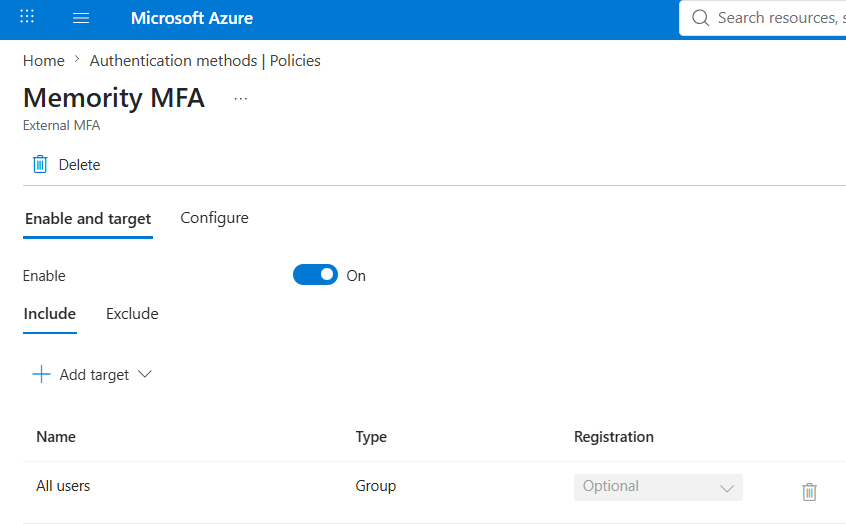
In the Enable and target section, turn on the Enable toggle, target the users or groups concerned, then select Save.
Step 3: Create the OAuth2/OIDC federation in Memority
Connect to the Functional Portal in Memority. You create a Federation configuration on a Resource, in the Federation tab, by selecting the Create button of the OAuth2/OIDC type. You can also duplicate an existing Federation configuration and adapt it.
Fill in the OAuth2/OIDC federation properties, with the following values for Entra ID:
|
Property name |
Value for Entra ID |
Comments |
|---|---|---|
|
Client Id |
The Application (client) ID of the application registered in step 1. |
Imposed by Entra ID. |
|
Redirect Uri |
|
Imposed by Microsoft. |
|
Client Type |
|
Entra ID does not use a client secret for this flow. |
|
Jwks Url |
|
Memority uses these keys to check the signature of the |
|
OpenID Connect Application |
|
The system uses the OpenID Connect protocol |
|
Authentication Level |
The authentication level of your strong authentication methods. |
Entra ID requests MFA, so map a level that excludes password-only (weak) authentication. |
|
Subject |
The user attribute that identifies the user. |
See Access Attributes. |
|
Propagate 'sub' from id_token_hint |
|
Required for Entra ID External MFA. Memority returns the |
|
Username claim from id_token_hint |
The claim extracted from the id_token_hint that identifies the user, for example |
Default value is |
|
AMR - Enabled |
|
Configure the values in step 4. |
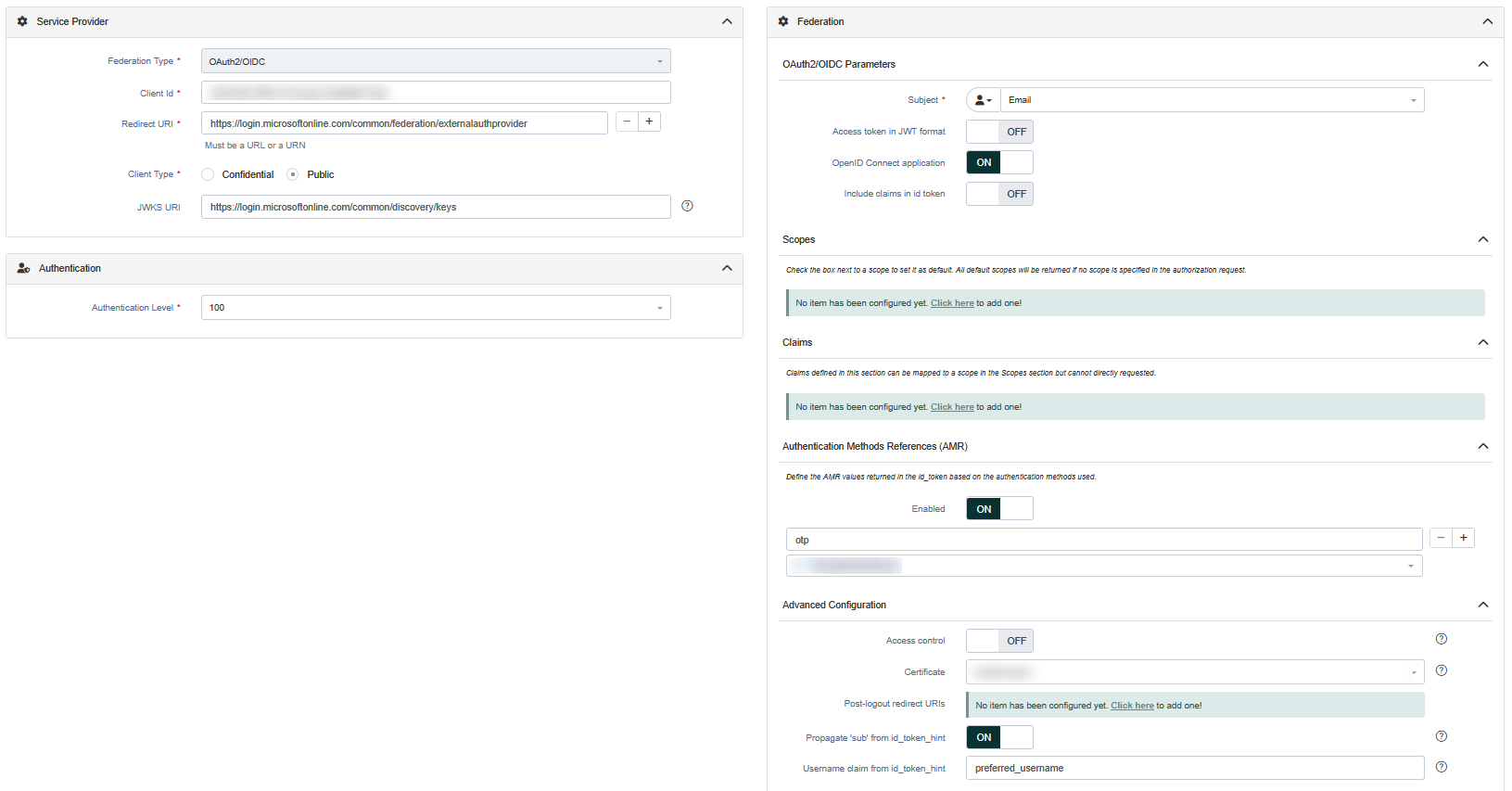
Step 4: Configure the AMR mappings
The Authentication Methods References (AMR) claim tells Entra ID which authentication methods the user actually used. Entra ID lists the values it accepts in the claims parameter of the authorization request.
You define an AMR mapping with two fields: AMR - Name, the value returned in the id_token, and AMR - Modules, the Memority authentication method associated with this value.
Example for Entra ID:
|
AMR - Name |
AMR - Modules |
|---|---|
|
|
OTP mail |
|
|
Push / mobile OTP |
|
|
WebAuthn FIDO2 |
You define AMR mappings on each federation. If you connect several Entra ID tenants, duplicate the federation you configured: the copy keeps its AMR mappings.
Step 5: Configure the ACR mapping
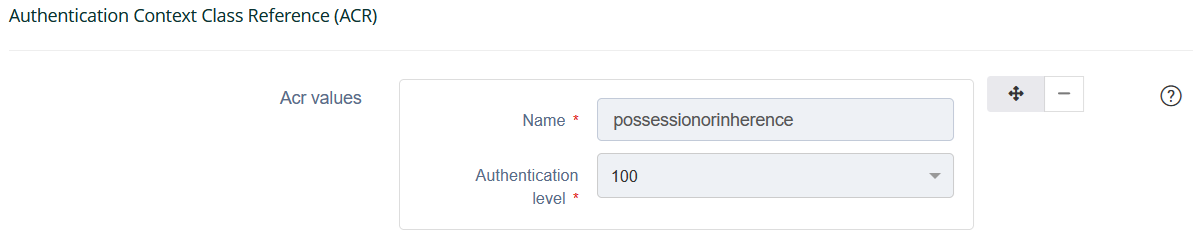
Entra ID requests an Authentication Context Class Reference (ACR) value in the claims parameter of the authorization request. Memority maps this value to a Memority authentication level, then returns it in the id_token.
-
Read the
claimsparameter that Entra ID sends in the authorization request, and note the expected ACR value. See the example request at the end of this page. -
In the Technical Administration Portal, select Access → OAuth2.
-
In the
acrValuesconfiguration, map the value that Entra ID requests to the authentication level of your strong authentication methods.
Map only strong authentication levels to the ACR value that Entra ID requests. Otherwise, Memority proposes weak authentication methods for a step that Entra ID treats as multi-factor.
Example for Entra ID:
|
ACR value requested by Entra ID |
Memority authentication level |
|---|---|
|
|
The authentication level of your strong authentication methods (for example, |
Check the global OAuth2 configuration
The includeX5cInJwkUri property adds the X509 certificate chain to the JWKS URL response. It's enabled by default. Keep it enabled, because Entra ID uses the JWKS endpoint of your tenant to validate the id_token that Memority issues.
See OAuth2 configuration.
Test the configuration
-
Go to https://portal.azure.com .
-
Enter the login of an Entra ID user, then complete the first authentication factor that Entra ID requires, for example, the password.
-
Choose whether you stay signed in.
-
On the secure your account screen, select Next.
-
Select External MFA, then select the method you declared in step 2.
-
Memority identifies the user automatically and proposes the authentication methods that match the requested ACR value. Authenticate with one of them.
-
Entra ID signs you in to the Azure portal.
-
Entra ID redirects the user to the Memority authentication page. Memority identifies the user automatically from the information that Entra ID sends, so the user doesn't enter a login. Memority proposes only the authentication methods that match the requested ACR value. Authenticate with one of them.
Example of an authorization request sent by Entra ID
POST https://<AM_HOST>/sso/v2/oauth2/<TENANT>/authorize

scope:          openid
response_mode:  form_post
response_type:  id_token
client_id:      <application (client) ID>
redirect_uri:   https://login.microsoftonline.com/common/federation/externalauthprovider
claims:         {"id_token":{"amr":{"essential":true,"values":["face","fido","fpt","hwk","iris","otp","tel","pop","retina","sc","sms","swk","vbm","bio"]},"acr":{"essential":true,"values":["possessionorinherence"]}}}
nonce:          <nonce>
id_token_hint:  <JWT signed by Entra ID, containing sub, oid, tid and preferred_username>
state:          <state>
Troubleshooting
|
Symptom |
What to check |
|---|---|
|
Memority displays the login page instead of identifying the user. |
JWKS URI is set on the federation, with the value Username claim from id_token_hint matches a claim that Entra ID actually sends, and its value matches the login of an existing Memority user. |
|
Entra ID rejects the |
Propagate 'sub' from id_token_hint is enabled on the federation. The Discovery endpoint of the external authentication method in Entra ID points to your Memority tenant: |
|
Memority proposes weak authentication methods. |
The ACR mapping associates the value that Entra ID requests with a strong authentication level only. |
|
Entra ID reports an unsupported authentication method. |
The AMR values defined on the federation belong to the list that Entra ID sends in the |
|
The connection to Entra ID fails. |
Memority logs connection errors to external OAuth2/OIDC providers. Check the Memority logs. |
Read Next
-
Federation configuration allows to declare the applications that delegate authentication to Memority, using SAML, WSFED or OAuth2/OIDC.
-
OAuth2 configuration allows to define some global parameters that will apply to all OAuth2/OpenID Connect federations of the tenant.