
Definition
This part allows to import or export Configurations of services:
-
Data Model
-
Business Model
-
Internationalization Service
-
Notification Service
-
Reporting Service
-
Synchronization Service
-
Audit Model
-
Access Service
-
Tenant Configuration Service
On each service, you can export schema by clicking on "Export Schema" button.
Usage
You can access the Configuration page :
-
by clicking on "System" → Configuration
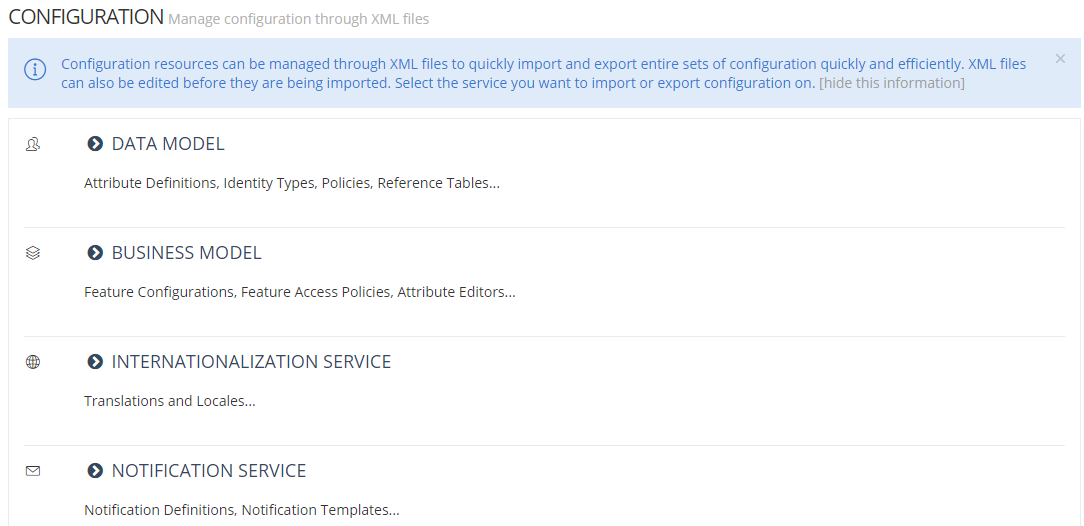
Select Configuration Service
|
Steps |
Preview |
|
|---|---|---|
|
1 |
Choose the service you want to import or export configuration on. |
|
Import
|
Steps |
Preview |
|
|---|---|---|
|
1 |
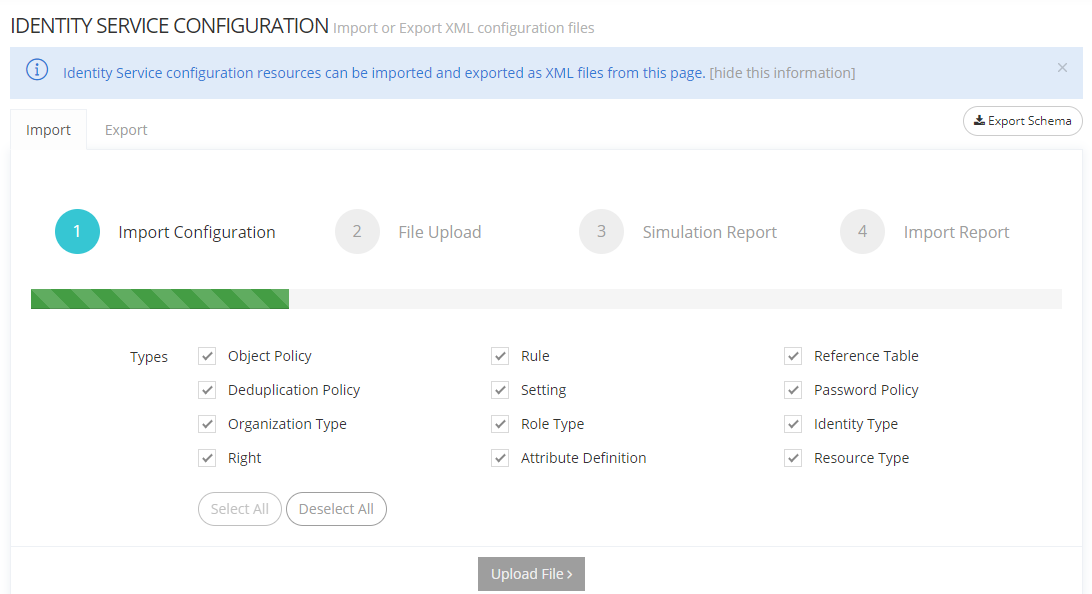
Choose the Import tab. |
|
|
2 |
For each service, all types corresponding to the service are displayed.
|
|
|
3 |
Click on the "Upload File" button. |
|
|
4 |
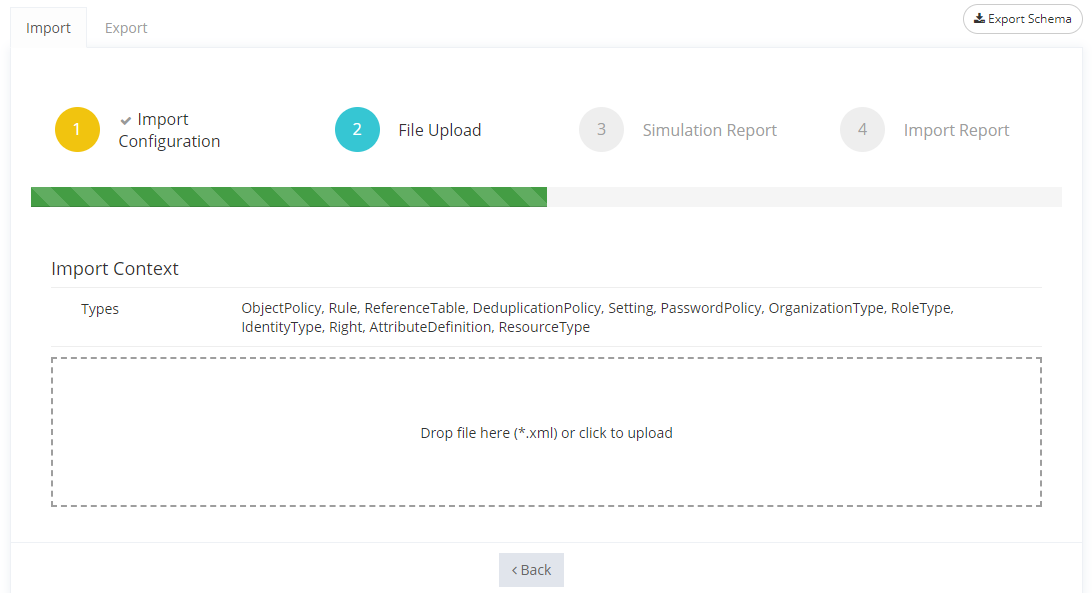
Drop the file or click in the zone to choose the file in folders. Format accepted: only XML. A check is performed on Import. |
|
|
5 |
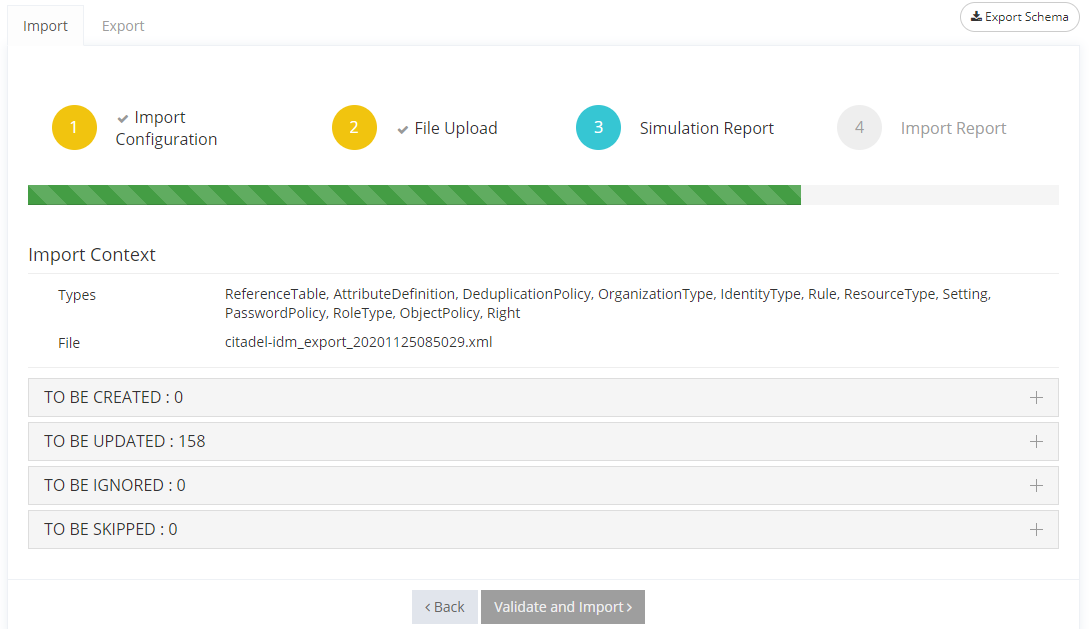
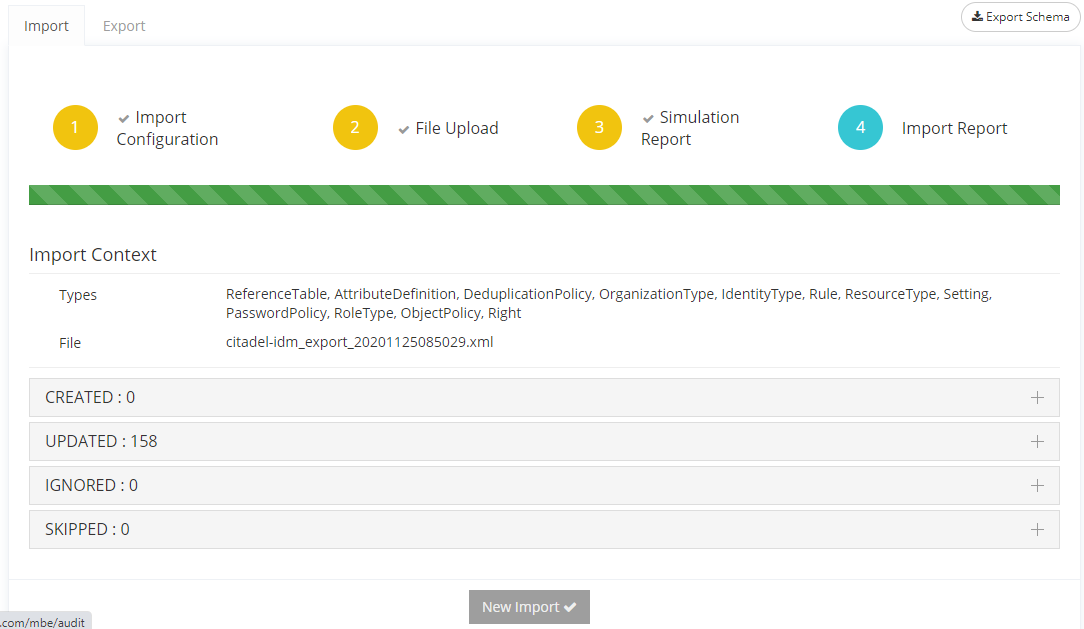
A simulation report is displayed with:
Four categories are reported:
|
|
|
6 |
You can modify your import by clicking on the "Back" button.
|
|
|
7 |
A import report is displayed (same as the simulation one). |
|
For internationalization import: locales can be added through the import function, but the default locale has to be managed directly through the GUI or API. If a modification is done in the file to be imported, it will be ignored by the system.
Rest API
|
Endpoint |
Payload |
Response |
Description |
|---|---|---|---|
|
<service> represents any service trigram that support dataset import: (i18n, amcp, aud, bum, idm, ntf, rep, sync, tnt). <params> are query parameters import options: mode: IMPORT (existing items are updated, new one are created), CREATE (Create only, existing items are left untouched), UPDATE (Update only, new items are skipped). execution: SYNC (The import is done synchronously in one HTTP request, this is only suitable for small imports) ASYNC (The import is done asynchronously, this is suitable for large import and is the default execution when using the UI) In all cases, the progress can be followed using the dedicated endpoint (see below). simulation: true, false If true, the import will only be simulated and no changes will be commited. filterTypeNames: An optional list of type names to filter out the dataset. Only those items that implement the type will be imported. filterTypeClasses: An optional list of type classes to filter out the dataset. Only those items that implement the type classes will be imported. Has precedence over filterTypeNames. |
The XML configurations.
|
A (complete or partial) import result. The result will be partial and returned immediately if the execution is ASYNC. Contains an id which allows to track progress. |
Import XML configurations |
|
Get the progress of an import by its id. |
- |
The current import result containing the progress percentage. |
Track the progress of an import |
Export
|
|
|
|
|---|---|---|
|
1 |
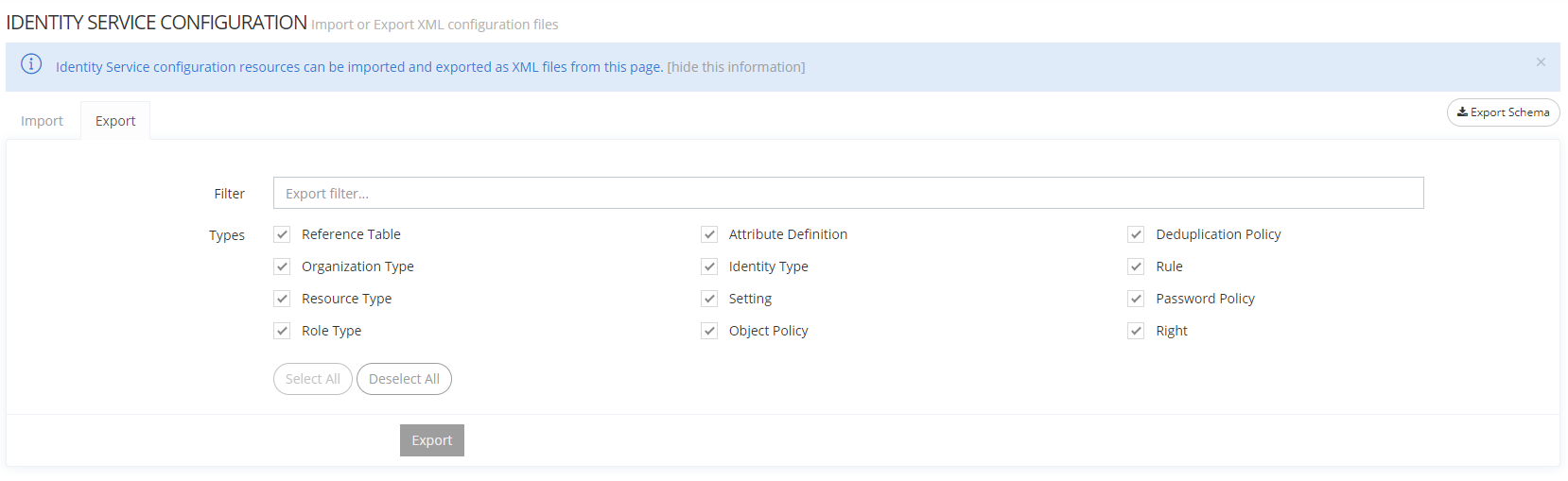
Choose the Export tab. |
|
|
2 |
For each service, all types corresponding to the service are displayed.
|
|
|
3 |
It is possible to filter the Export using the search bar.
|
|
|
4 |
Click on the "Export" button. |
|
|
5 |
The XML file is downloaded into your folder. |
Read Next
-
Configurations -
Audit The Audit allows to search for audit events on criteria such as title, details, actors... and establish correlation between events.
-
Settings The Settings are a key or value storage of properties that are configured per tenant and on different services (Identity, Business, Synchronization and Audit).
-
Jobs A Job allows to schedule actions on different services (Identity, Business, Synchronization) and manage their lifecycl
-
Logs The Logs allows to search for log events on criteria such as service, level...
-
Internet network whitelist Allows to configure network address whitelist.