My-Access offers authentication through OATH to generate TOTPs on mobile Authenticator Apps such as Google Authenticator, Microsoft Authenticator or any other eligible application.
Enrollment Process
Activation
Users need a specific right to be able to enroll this authentication method.
This activation can be done:
-
Manually by an administrator
-
Automatically from Memority policy (identity or role) which can use identity attributes characteristic
Enrollment
To be able to send an OTP on email address or SMS, users must be enrolled either:
-
Manually through the Memority portal
-
Automatically from Memority policy based on identity attributes
Self Service
Self-Service features may rely on the Self-Service Authentication Hub provided by My-Keys.
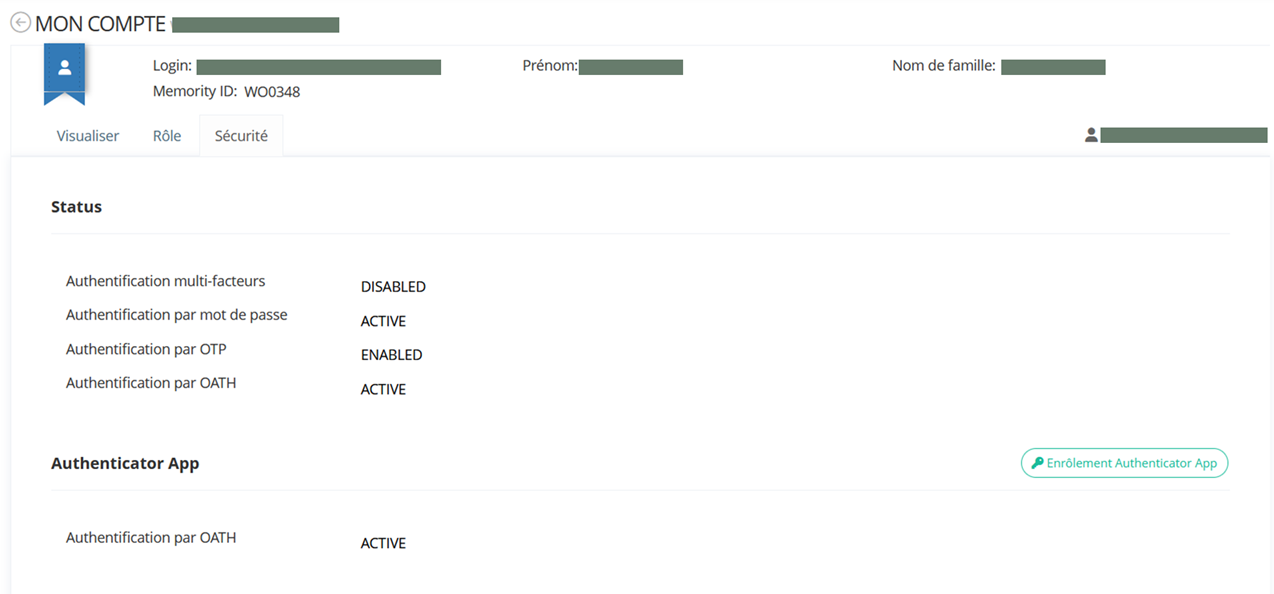
From the End User Memority portal, users can access the OATH enrollment feature in order to:
-
Enroll new Authenticator Apps
-
Manage enrolled Authenticator apps (rename or remove)
SCREENSHOT AUTHENTICATOR APPS FROM SECURITY TAB
When enrolling an Authenticator app, users must follow several steps:
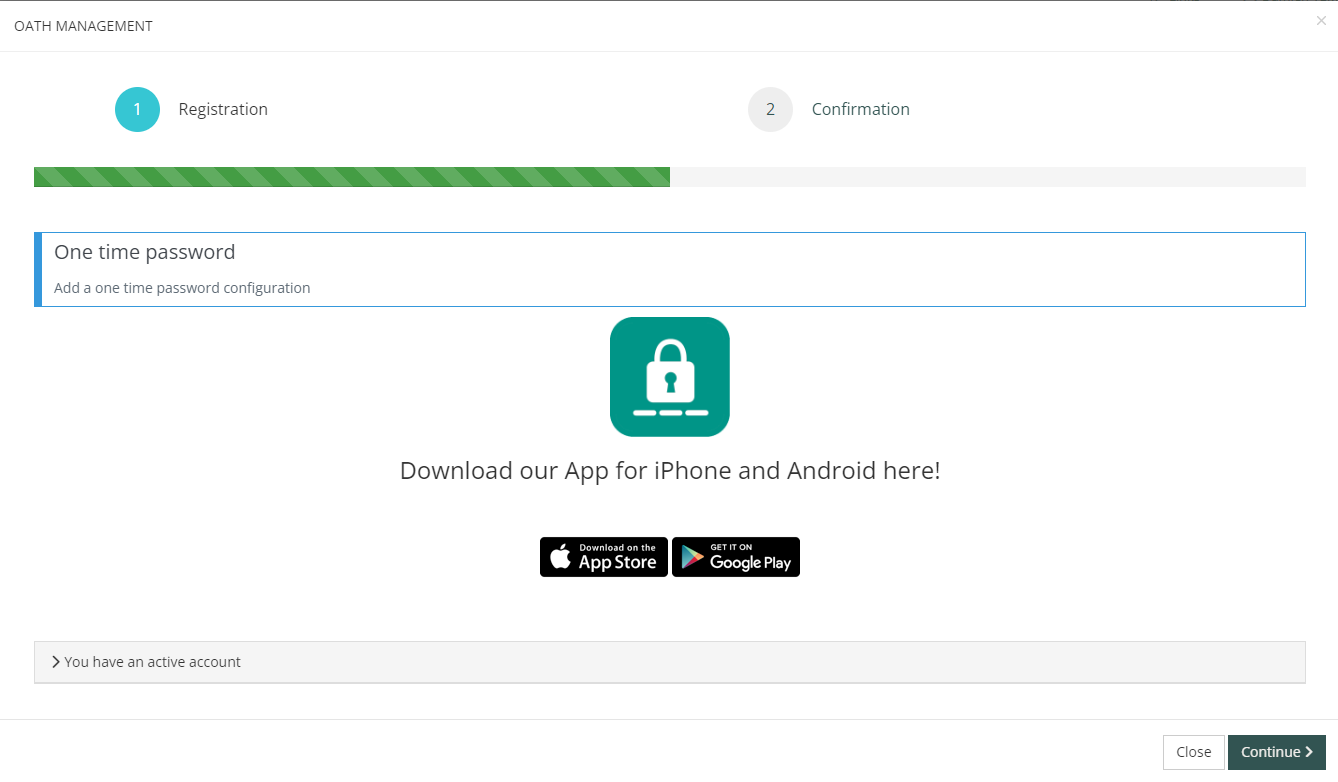
Step 1: Download your preferred OATH-compatible Authenticator App (or the Entreprise-approved app)
Memority is compatible with major Authenticator Apps such as Google Authenticator or Microsoft Authenticator.
The interface can be customized to display download links to the Entreprise-approved application.
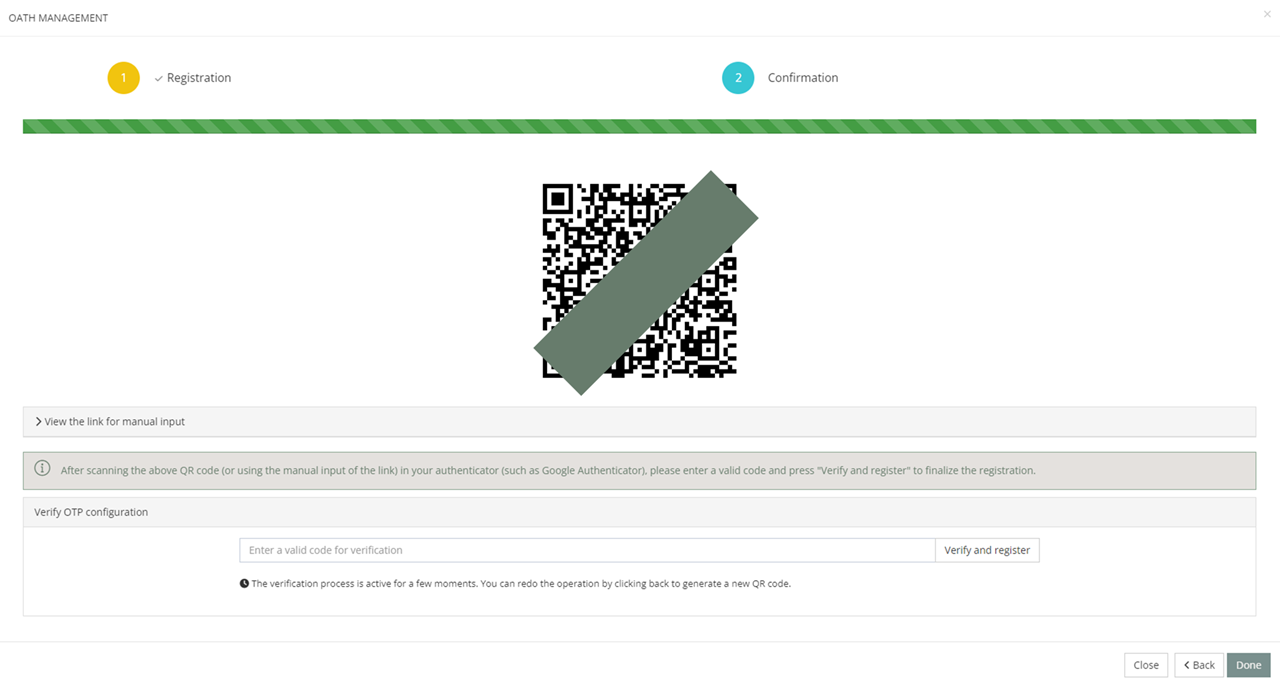
Step 2: Scan the QR code or manually type the provided key
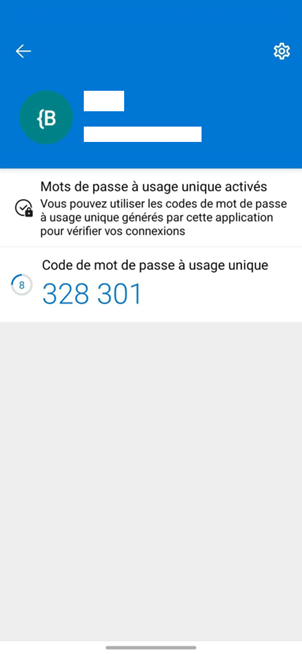
Step 3: Confirm enrollment by entering the OTP generated on your phone in Memority.
Administration
Administrators can manage enrollment(s) using the Self-Service Authentication Hub provided by My-Keys, displaying valuable information about each enrolled device:
-
Status
-
Enrollment date
-
Last Used date with some information about it (IP, …)
For each enrollment they can:
-
Disable it: While the enrollment is disabled it cannot be used by the user to authenticate, but the enrollment is not deleted so it can be used again once it has been reactivated.
-
Remove it: After the deletion, users with other enrollments will be able to use them to authenticate. Otherwise, they may have to enroll a new OATH device to authenticate using this method.
By design, OATH OTPs contain 6 digits and expire every 30 seconds.
Authentication Process
As for other authentication modes, once the method activated and an OATH device is enrolled, a new module will be available.
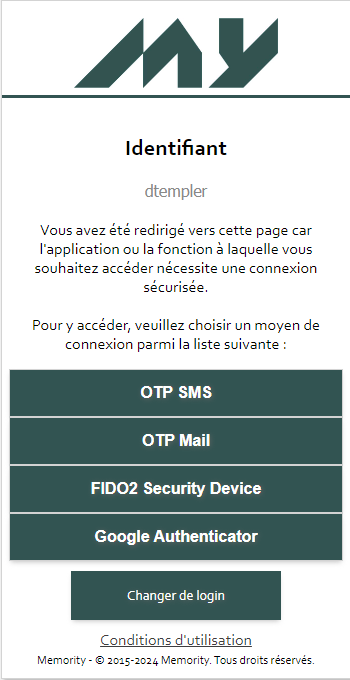
After selecting the OATH device authentication (e.g. Google Authenticator), retrieve the generated OTP on your device and enter it in the Memority login page.
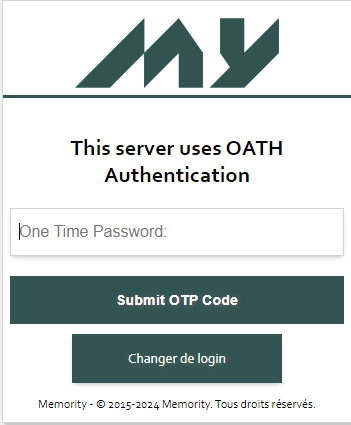
Once authentication is successful, users will be redirected to the application.
Read Next
-
FIDO2 For Windows Hello, Yubikeys & Passwordless Authentication My-Access offers Passwordless Authentication using Fido2 or Windows Hello tokens. FIDO2 is the passwordless evolution of FIDO U2F.
-
OTP SMS / Mail authentication My-Access offers authentication via OTP sent by email or SMS, compatible with authentication to access Web applications, mobile applications and heavy clients.
-
OATH For Authenticator Apps -
x509 Certificates For Chip Cards & Badges My-Access offers Authentication using x509 certificates, namely for chip card (badges) authentication or for certificates stored in browsers.
-
Passwords (Including LDAP/AD passwords) Memority offers password authentication natively.
-
IDP Proxy My-Access supports SAML2, OIDC and OAuth2 protocols as Service Provider (SP) in a scenario where user authentication/authorization is delegated to an external Social Network (Meta, Google, X, etc.) or private third party Identity Provider (IdP) using their own local credentials.
-
Kerberos Authentication My-Access supports transparent Kerberos authentication.
-
Secure Cookie Memority provides authentication via Secure Cookie (“Trust this device”), which is mostly used in B2C contexts.