
Object Search in Memority can be done using a search feature. To respond to all needs, Memority offers extended search features configuration.
Thus, admins can configure the following elements for a search feature:
-
Search Mode(s): to define how the user can search objects
-
Object Attributes displayed in results table: what object information will be displayed, and sorting possibilities.
-
Action buttons: to allow direct access to features to manage objects
-
Export availability: to define whether the user will be able to download search results and in which format.
-
Actions: to define features accessible directly from search results
Confidential attributes cannot be displayed in the search bar
Several search modes
Memority offers the following search modes:
-
Simple search: this mode allows to search objects based on a single input field.
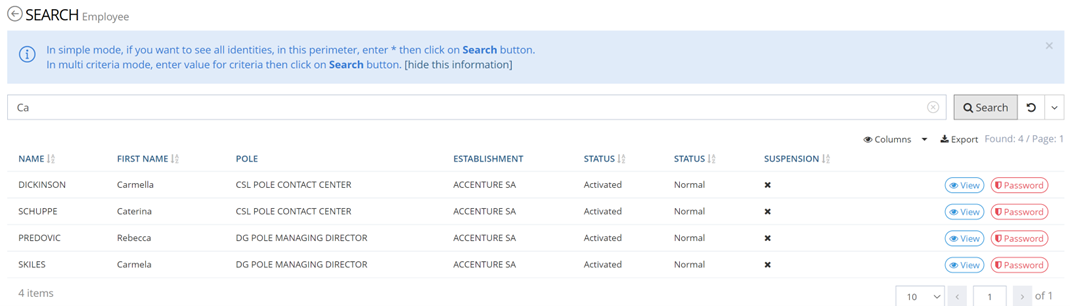
-
Multicriteria search: this mode allows to add criteria for an object search. In the screenshot below, the search will return all active identities in the CSL POLE CONTACT CENTER organization, whose contract type is CDI.
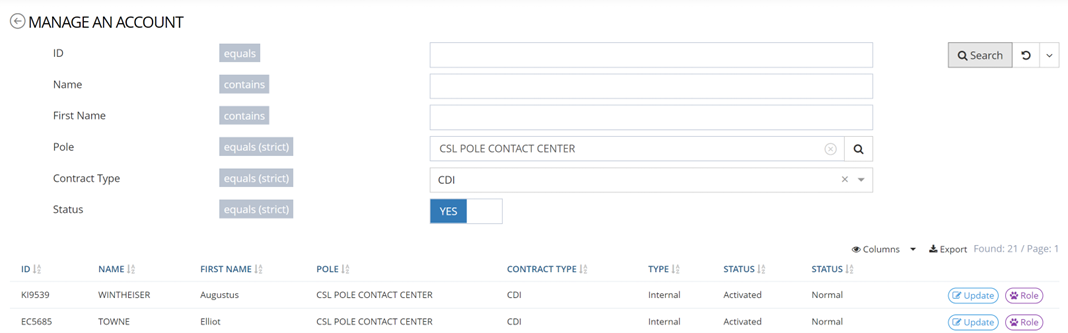
The available criteria (as well as the operators) are configurable for each search mode.
-
Formula search: this mode works the same way as multi-criteria search as it can rely on several search criteria. However, unlike multi-criteria search, it allows more flexibility and lets users choose the attributes and operators. This mode is intended for experienced users.

The availability of search modes will be configured in the feature. Allowing to configure an organization search feature with only a simple search mode and an identity search feature with all search modes.
Data Export
With necessary configurations, Memority allows to download search results in CSV or XSLX format. The export can be customized based on the search results.
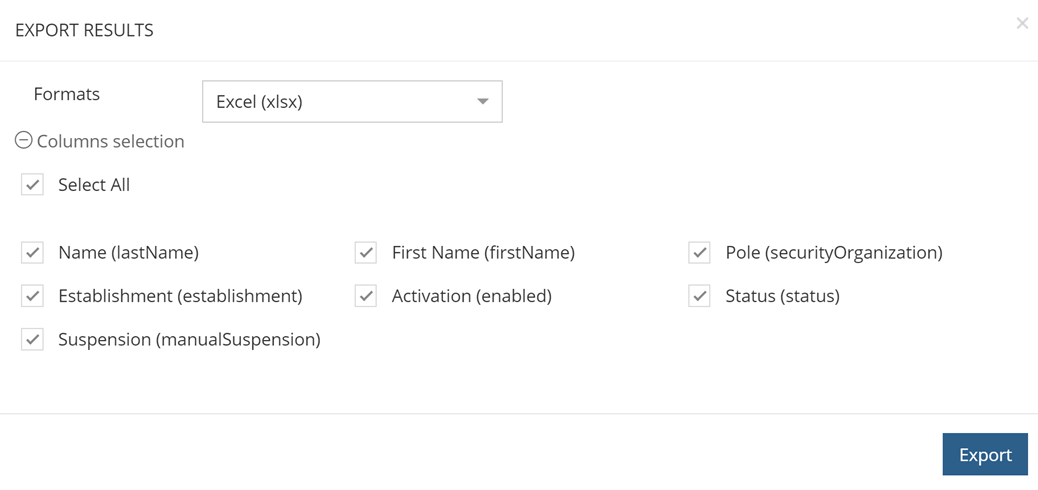
For CSV files, encoding options are available.