
Memority provides a full-featured API platform that offers various types of APIs to manage the solution.
Memority API Guard secures all APIs by handling both authentication and authorization. It supports standard OAuth2 flows, including:
-
Authorization Code flow for human identities accessing APIs interactively (for example, through Postman)
-
Client Credentials flow for non-human identities such as services, connectors, or automation scripts
Memority provides three main types of APIs:
-
Data APIs – to manage objects such as users, roles, or groups
-
Features APIs – to execute platform functionalities
-
Configuration APIs – to import or export microservices configurations
All API requests must go through API Guard for secure and controlled interactions across tenants.
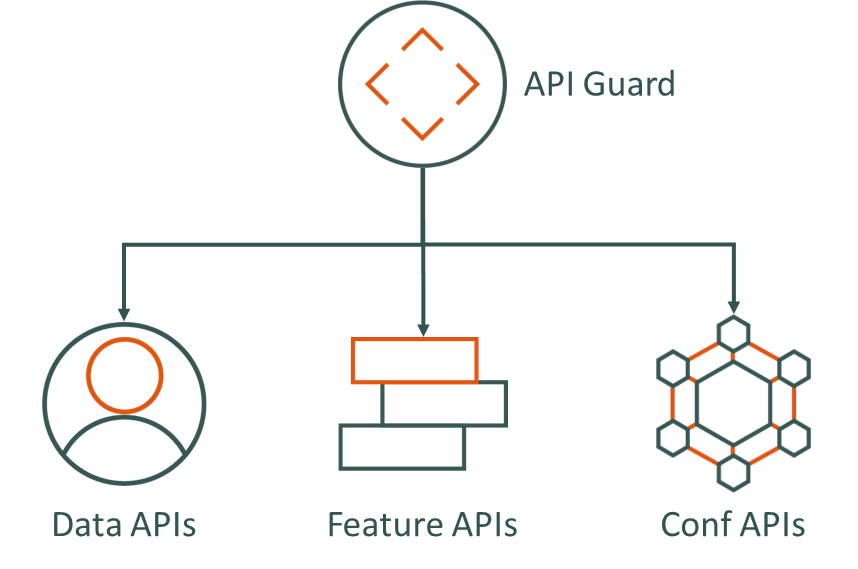
If you want to give access to APIs endpoints to external identities (human or non-human), we recommend to use Features APIs instead of Data APIs. These APIs allow you to have a strict control on actions and attributes that can be handled by the external system. In next chapters, we will assume you want to give access to these APIs.
Memority provides ready-to-use collections and environment templates that can be used by both human and non-human identities.
Postman Resources and Setup
|
Action |
Description |
|---|---|
|
Download Postman collections and environment templates |
Download the following files: Memority APIs.postman_collection.json |
|
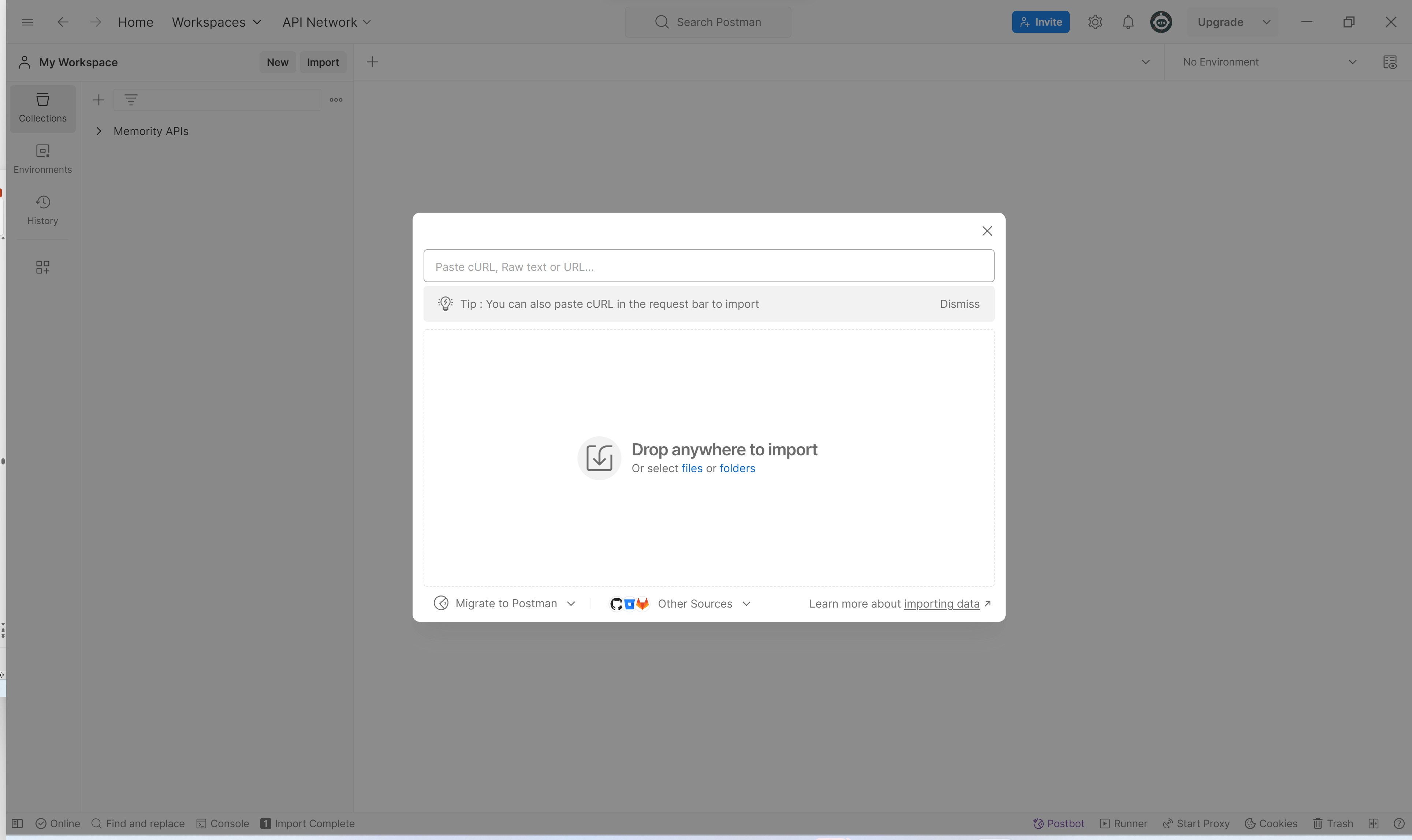
Import templates into Postman |
|
|
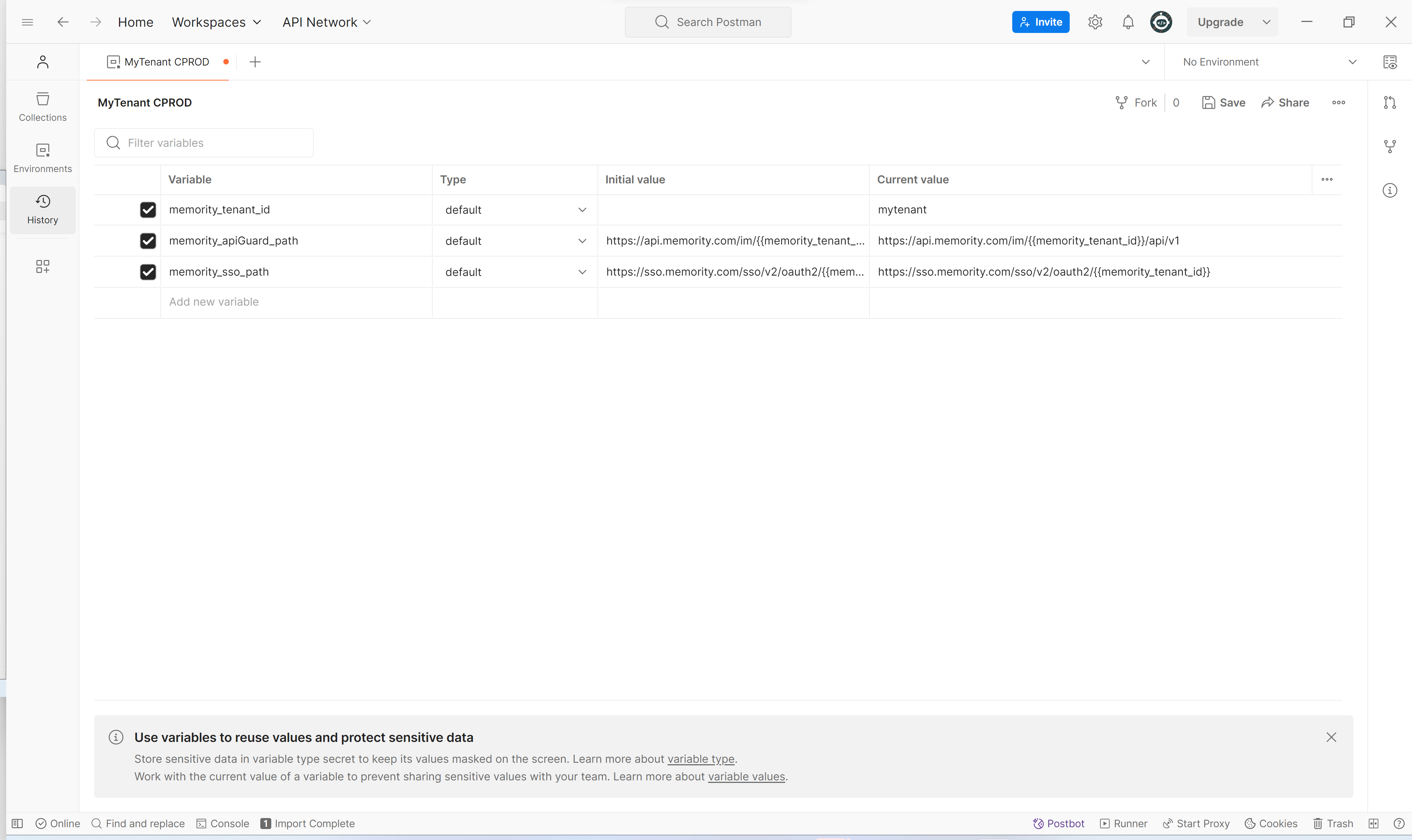
Set up the Postman environment |
|
|
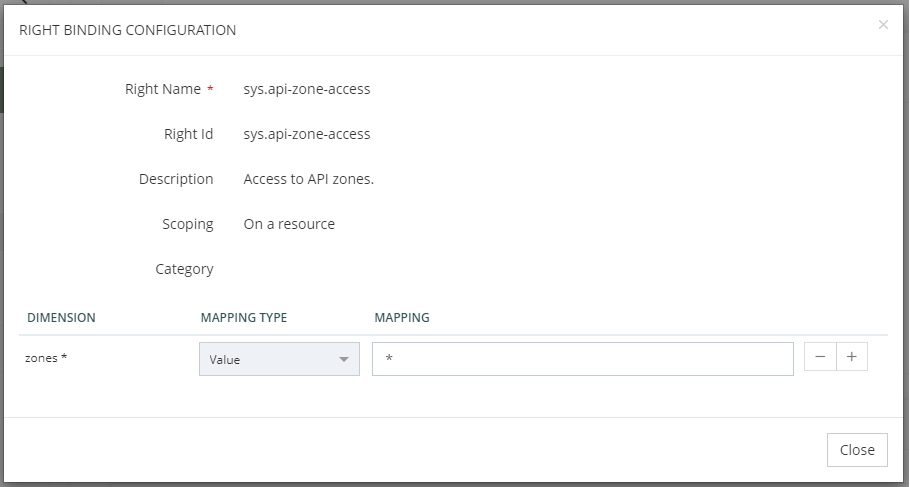
Verify your environment configuration and the API access rights |
|
Once configured, the collections and environment above can be used by both human and non-human identities to test Memority APIs.
Authenticate and Call Memority APIs as a Human Identity
Human identities can use their own user identities to access Memority APIs interactively.
This method applies to human identities who authenticate through the Memority SSO portal, typically when using Postman.
This process uses the OAuth 2.0 Authorization Code flow, which applies the same multi-factor authentication (MFA) and authorization policies as the portal.
Use this method when manually testing APIs or performing administrative operations that require interactive login.
Usage
Once the environment is ready, you can authenticate and send API requests through Postman.
|
Action / Description |
Details |
|---|---|
|
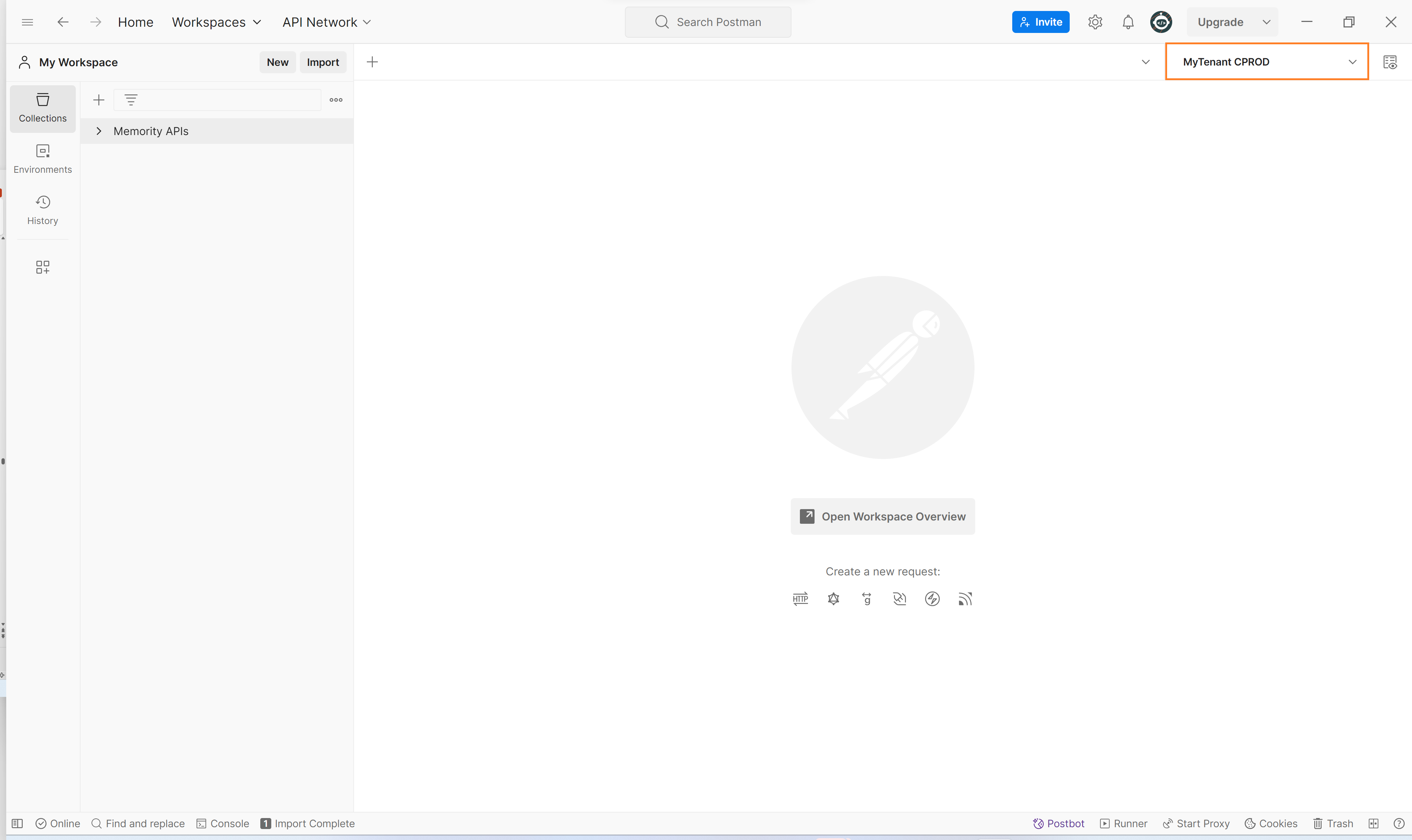
Select your tenant environment on Postman |
|
|
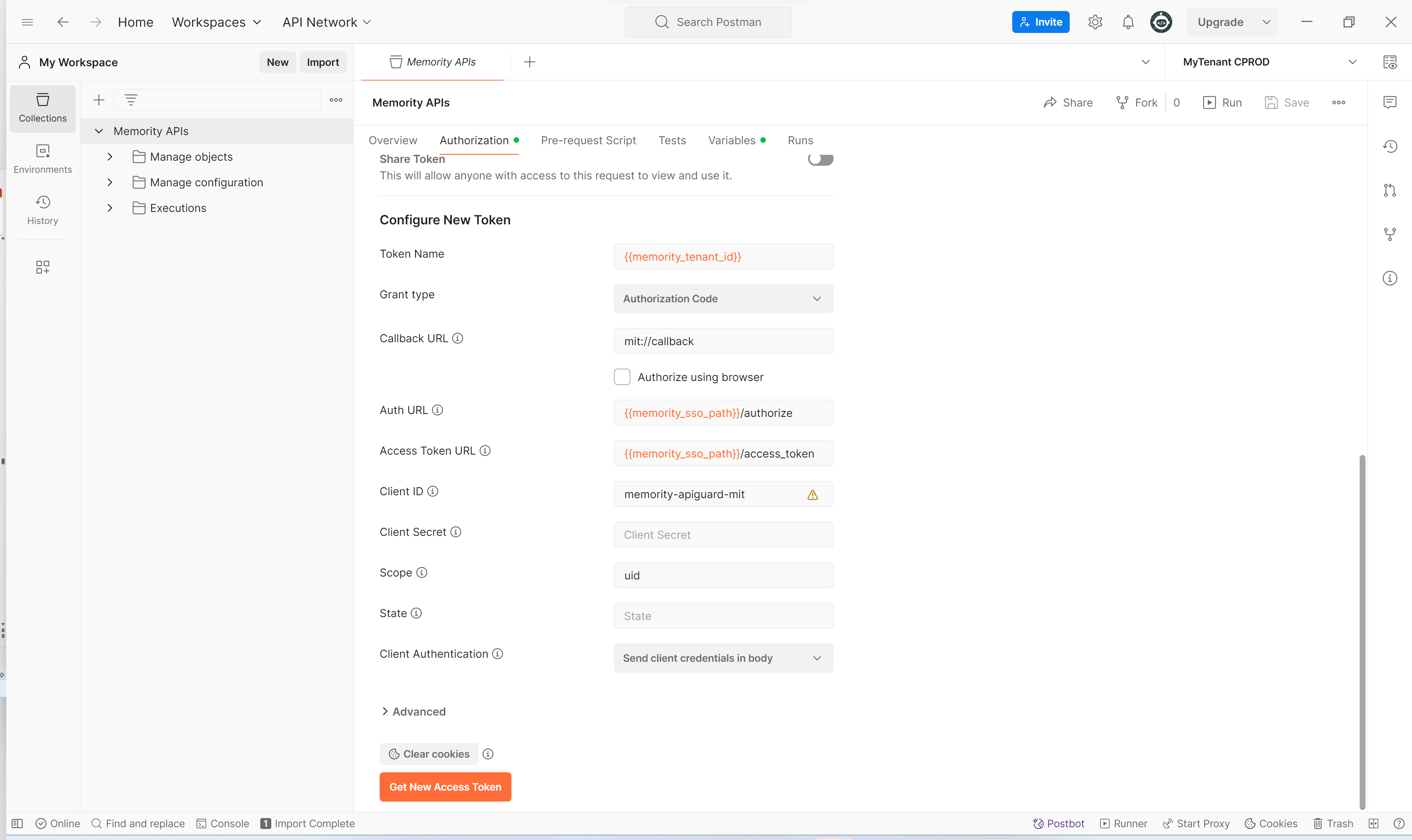
Authenticate to request APIs:
Memority API authentication requires Multi-Factor Authentication (MFA) Postman retrieves your access token and stores it in the selected environment. |
|
|
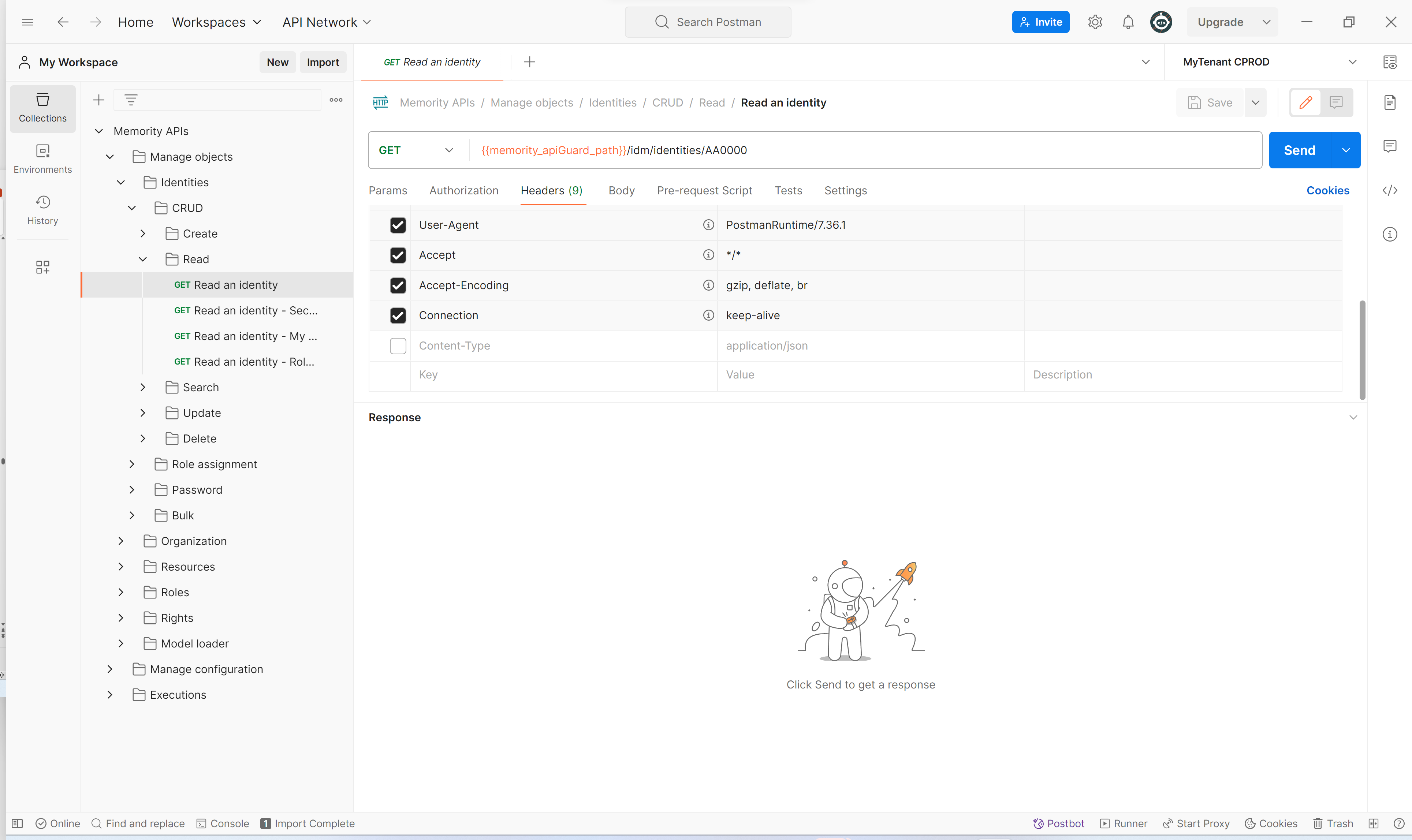
Send API requests:
Postman automatically includes your access token in each request until it expires.
|
|
Authenticate and Call Memority APIs as a Non-Human Identities
Non-human identities (e.g., applications, connectors, or backend systems) can call Memority APIs using the OAuth2 Client Credentials flow. The flow is managed by Memority API Guardian.
A non-human identity authenticates with a client ID and client secret, obtaining an access token without human intervention.
Before configuring OAuth2 federation and Postman, make sure your tenant includes non-human identities to represent automated systems or applications that need to call Memority APIs. Each non-human identity authenticates through API Guardian and acts under the same access-control model as human identities.
We recommend that you:
-
Create one or more non-human identities dedicated to API access.
-
Assign these identities to a dedicated group to manage their permissions consistently.
-
Grant the group only the minimum rights required for the APIs they need to use.
Once these identities exist in your tenant, continue with the OAuth2 federation configuration below.
Usage
|
Action / Description |
Details |
|---|---|
|
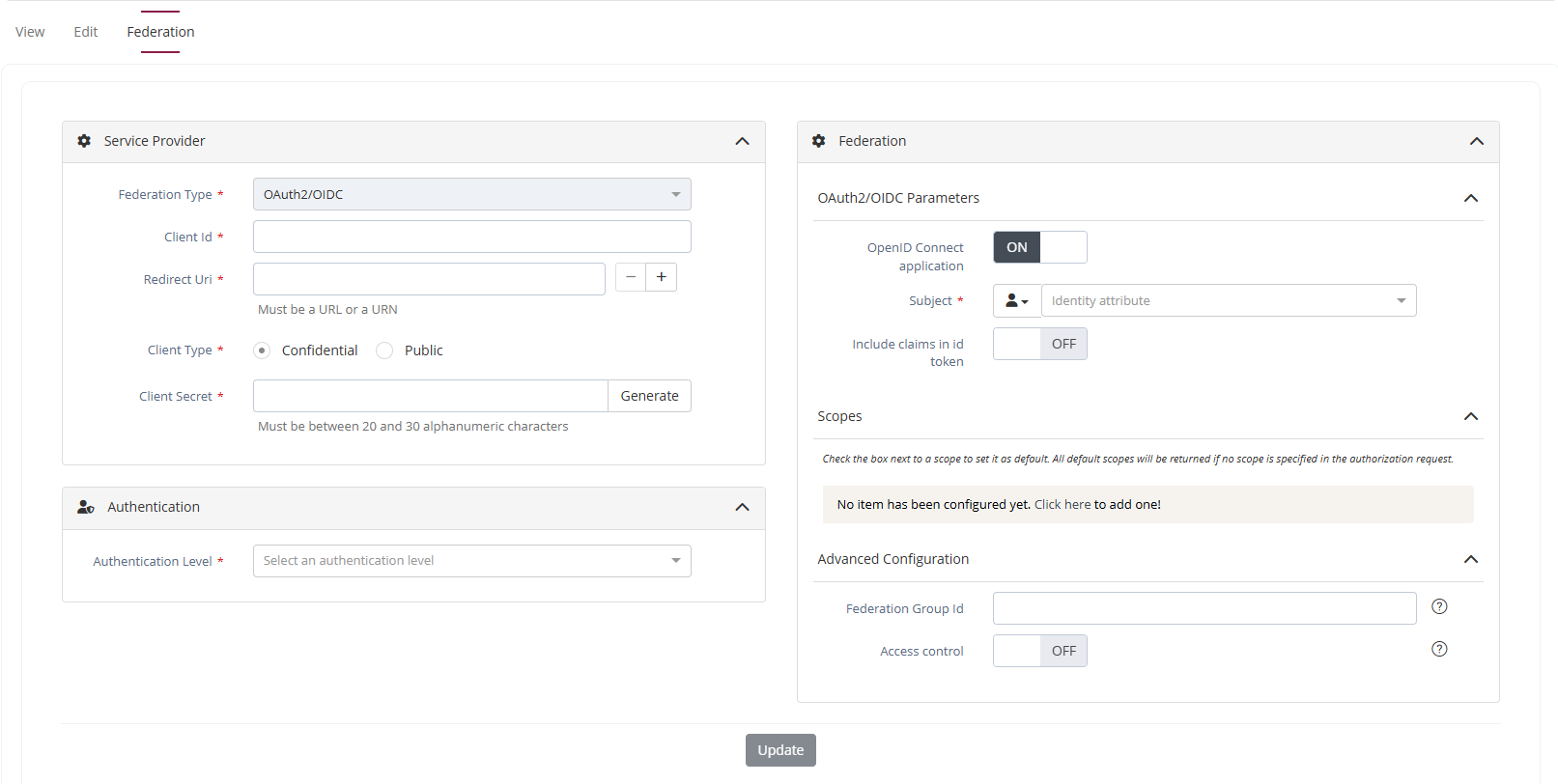
Federation Configuration |
|
|
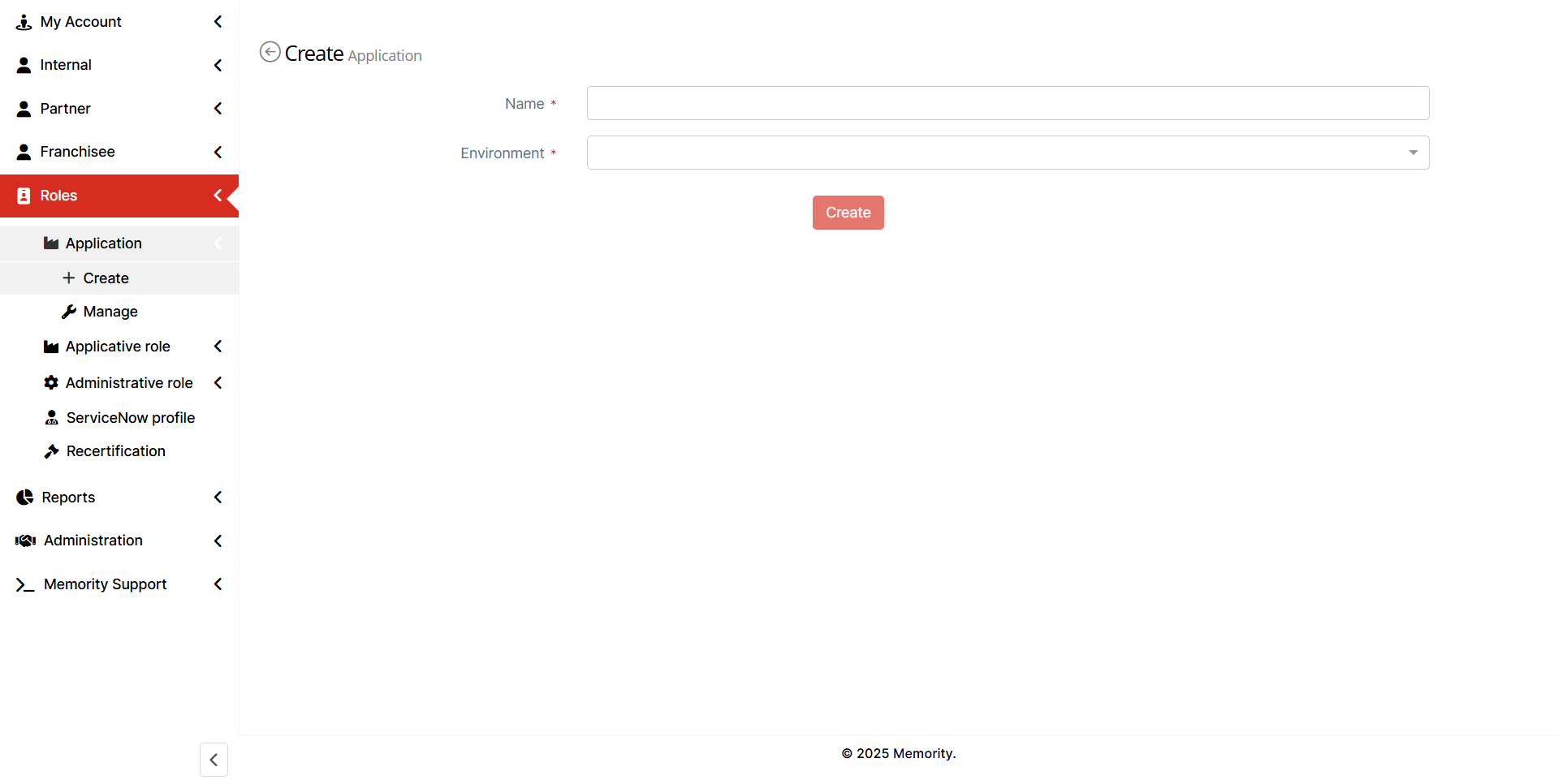
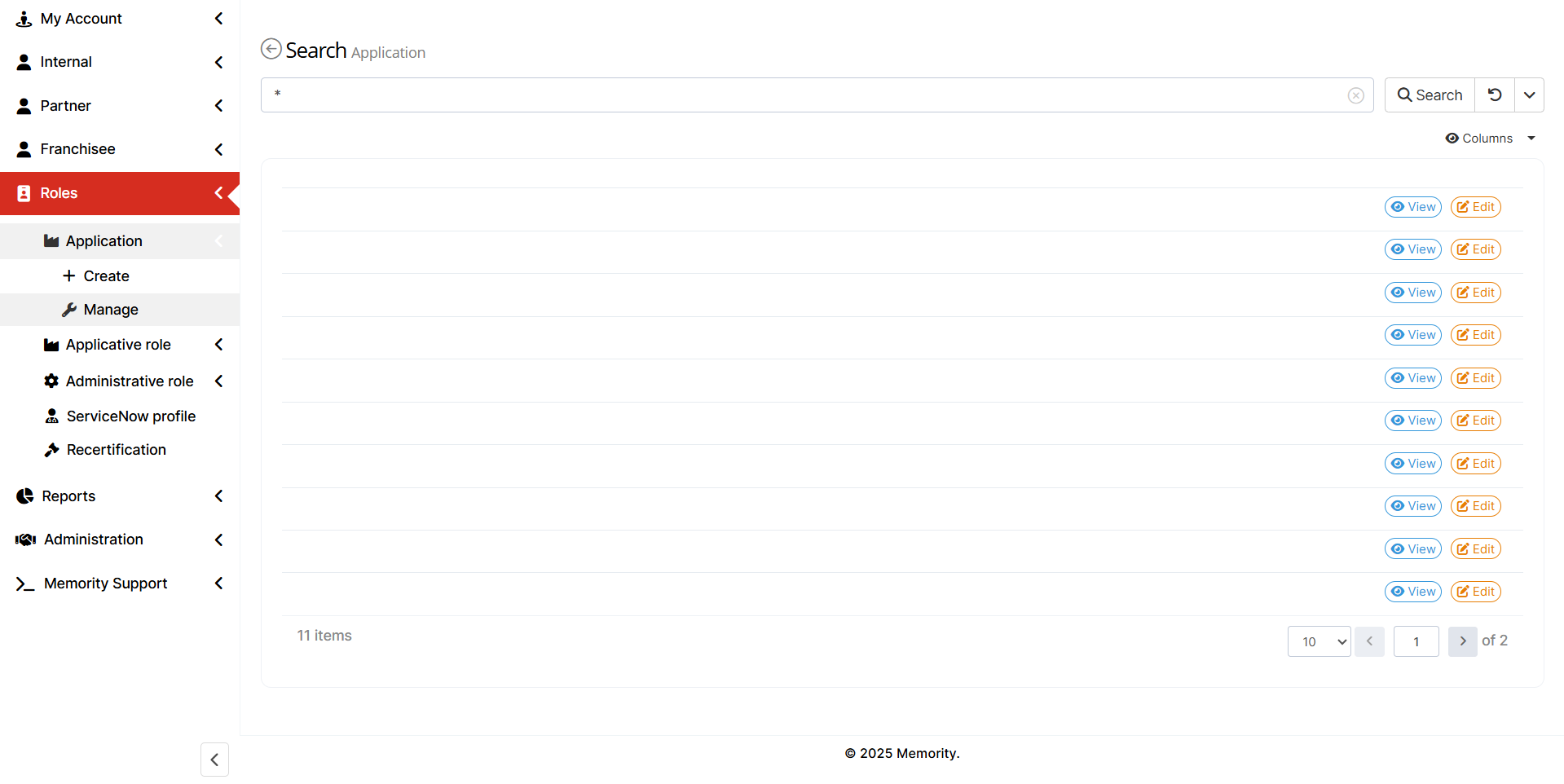
Go to User Portal → Roles → Application → Create
|
|
|
In Roles → Application → Manage select the application you have just created.
|
|
|
After selecting the application, click on Federation to open the federation form.
|
|
|
Postman Environment Integration & Token Setup |
|
|
Create a new environment:
|

|
|
Add the variables to your new environment. |
Add the following variables:
Name the environment and save the environment configuration. |
|
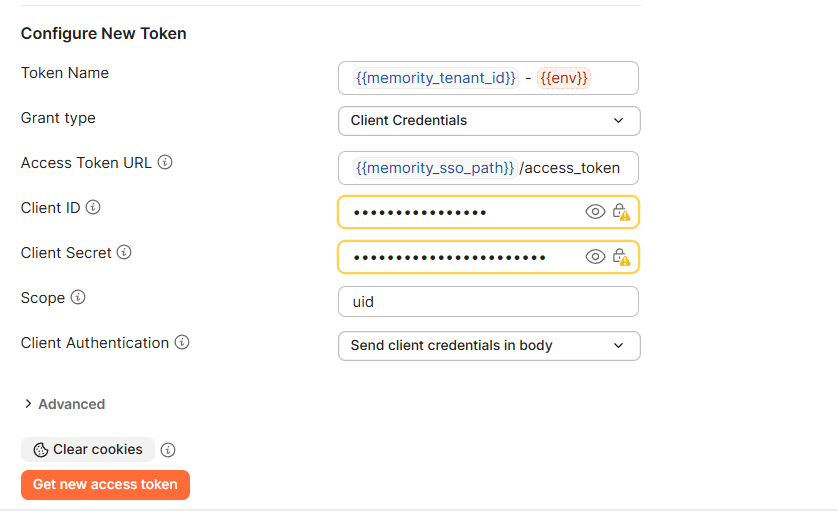
Choose the environment you created in the previous step. In the Authorization tab, configure a new access token using the following parameters:
|
|