
Definition
An Import Task allows either an end user or the system (in the case of a scheduled import) to launch a data import using a CSV file or a REST API.
You can choose to:
-
Start the import immediately
-
Schedule it to run once at a specific date and time
Usage
An Import Task is either:
-
Private – An end user launches it manually.
-
Public – A scheduled job runs it at regular intervals.
Launch an Import - Private Import
When a user launches a private import, only that user can access the task. Users with administrative rights can also view and manage all private imports.
|
Steps |
Preview |
|
|---|---|---|
|
1 |
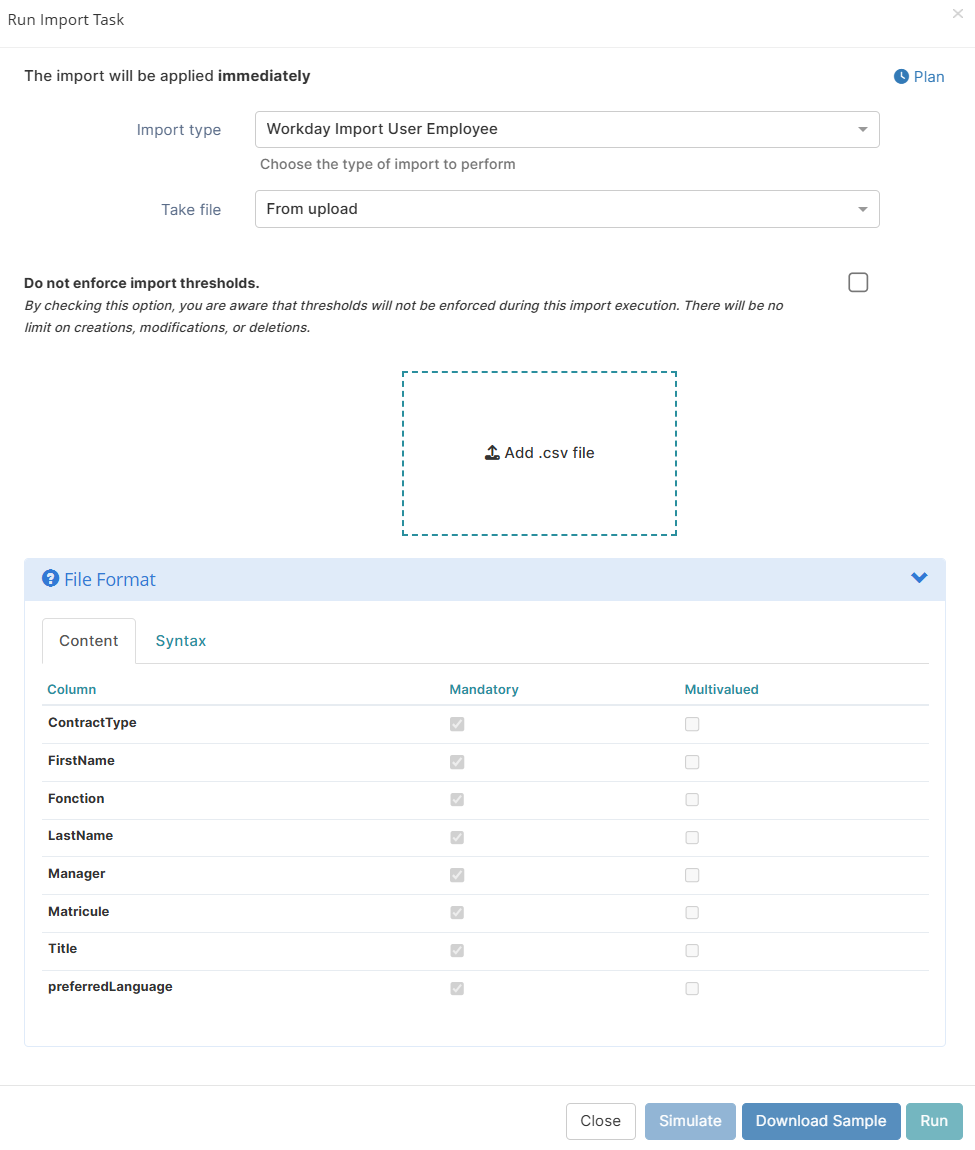
In the User Portal, go to Administration > Import Tasks, then click Run Task. |

|
|
2 |
Select the import task you want to run. If the import type is CSV, choose one of the following options:
If the import type is LDAP, REST API, or another supported source, skip this step, you don't need to provide a file. Use the file format defined in the configuration. Follow the existing settings for the separator character, escape character, and other formatting rules.
Check the File Format Information section to understand the format before running the import. |
|
|
3 |
Optional: If you have the |
|
|
4 |
Optional: Click Simulate to preview the import without applying changes. |
|
|
5 |
Click Run to start the import. If you want to schedule the import for later, click Plan (top right) and choose a date and time.
|
Visualize an Import Task - Public Import
Only users with the appropriate rights can access export files generated by public (scheduled) imports.
|
Steps |
Preview |
|
|---|---|---|
|
1 |
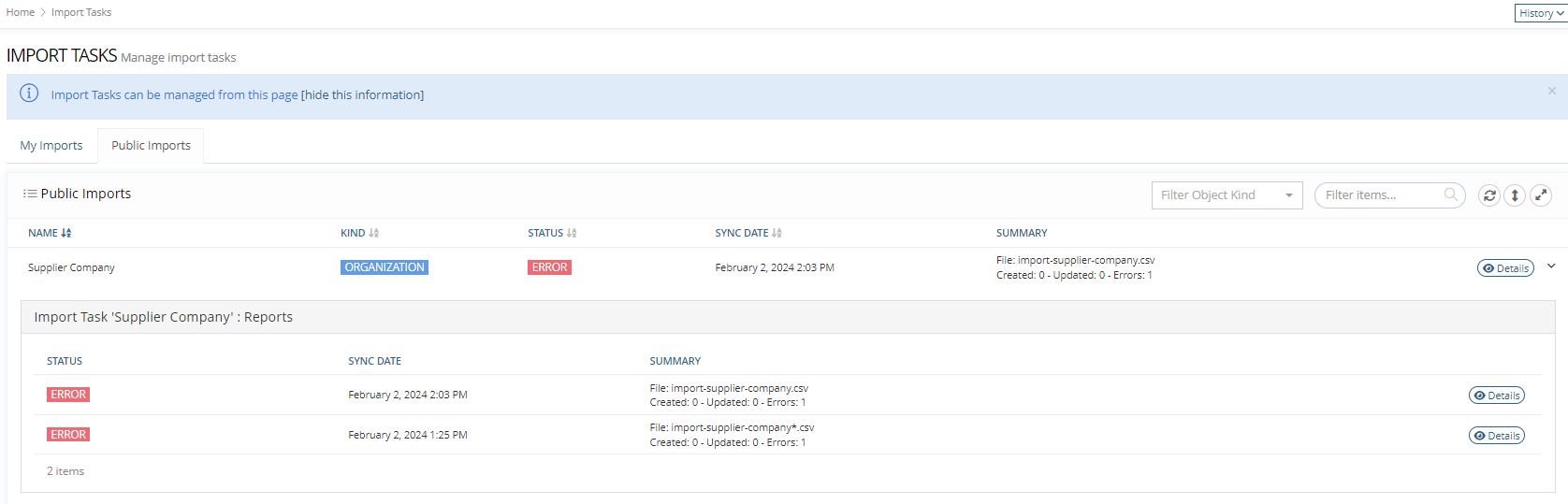
To view the details of a public import:
|
|
Access Control
You can grant execution rights on a per-task basis. For example, if Import Tasks A and B exist, you can allow a user to execute Task A while restricting access to Task B.
You can also assign administrative rights to let a user execute any Import Task.
The system checks permissions every time a user tries to run an import task.
These permissions follow standard access control schemes:
You can grant users the following rights, each controlling a specific level of access:
The private task execution permission that allows end users to retrieve an import report is specific to the Import feature (see next section).
This type of private permission doesn’t exist for regular Synchronization Tasks.
Configuration
Don’t confuse the execution of an Import Task with its configuration.
Administrators configure the tasks, and the end-users execute the tasks if they have the appropriate execution rights on the Import Task. In case of a scheduled import, the system executes the task.
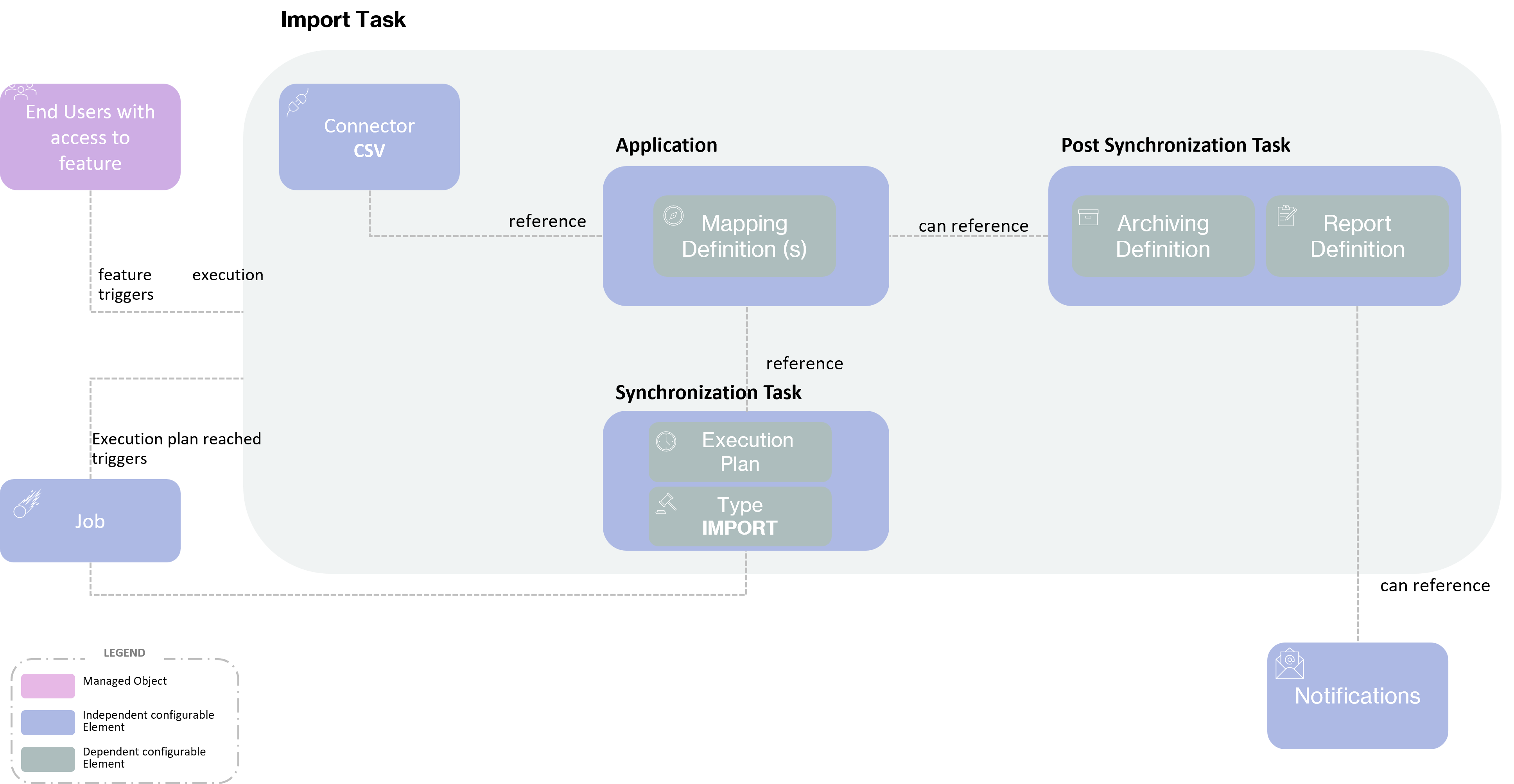
An Import Task is configured through a classic Synchronization Task. When you execute an Import Task, the system actually runs a Synchronization Task behind the scenes. The "import" aspect comes from the ability to upload a CSV file on-the-fly when the user launches or schedules (once) the Synchronization Task.
The core object remains the Synchronization Task, which must reference the following components to work properly:
-
Application. This is the main configuration entry point. It defines the mapping between IDM service attributes and the remote system's attributes.
-
which itself references a connector, the component enabling Synchronization Task to communicate with the remote application
-
-
Post Synchronization Task (optional). Defines what happens after the sync, such as post-processing or reporting actions.
Example
REST API
The Memority Synchronization service exposes the following Import REST API:
Options can be provided in the JSON body when launching an import task, they are listed below:
|
Property Name |
Type |
Mandatory |
Description |
Values (default value in bold) |
|---|---|---|---|---|
|
executionPlan |
|
NO |
Only set when the Task execution is deferred to a later date. This is the CRON expression defining when the task will be executed (only once). It can be executed only once, thus providing a recurrent CRON expression is forbidden. |
- |
|
simulate |
|
NO |
Whether the task execution is simulated or not. |
false, true |
Here is an example of a multi-part curl command used to launch an Import Task with a CSV file and the "simulate" option set to "true":
Launch an import task
curl -i -X POST \
-H "Content-Type: multipart/form-data" \
-u login:password \
-F "options={\"simulate\":\"true\"};type=application/json" \
-F "file=@mydata.csv" \
http://localhost:8150/memority/api/sync/~run-sync-task/myimportTask/~content
Here is an example of JSON returned by ~data-format:
Read Next
-
Synchronization Configuration Objects -
General Synchronization Principles -
Import Task -
Reconciliation Reconciliation allows to compare the content of a remote application's repository with the IDM repository. The reconciliation task starts by scanning all the application's objects (accounts, organizations...), detecting changes regarding the IDM state; new applicative accounts added, accounts that no longer exist (i.e. removed by the application's administrator), accounts modified. Reconciliation is usually executed as a scheduled task.