How to create a configuration element ?
By admin portal
|
Steps |
Preview |
|
|---|---|---|
|
1 |
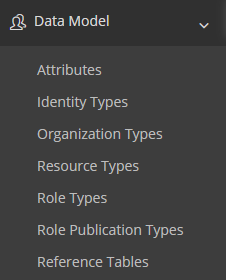
Access the admin portal, click on section associated to the element you want to create then click on the type of item you want to create. Each section will be detailed in each element page of this guide. |
|
|
2 |
Click on the "Create" button to access the creation page. |

|
By XML import
|
Steps |
Preview |
|
|---|---|---|
|
1 |
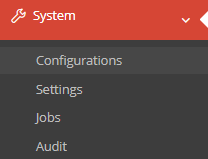
Access the admin portal, click on "System" then "Configurations". |
|
|
2 |
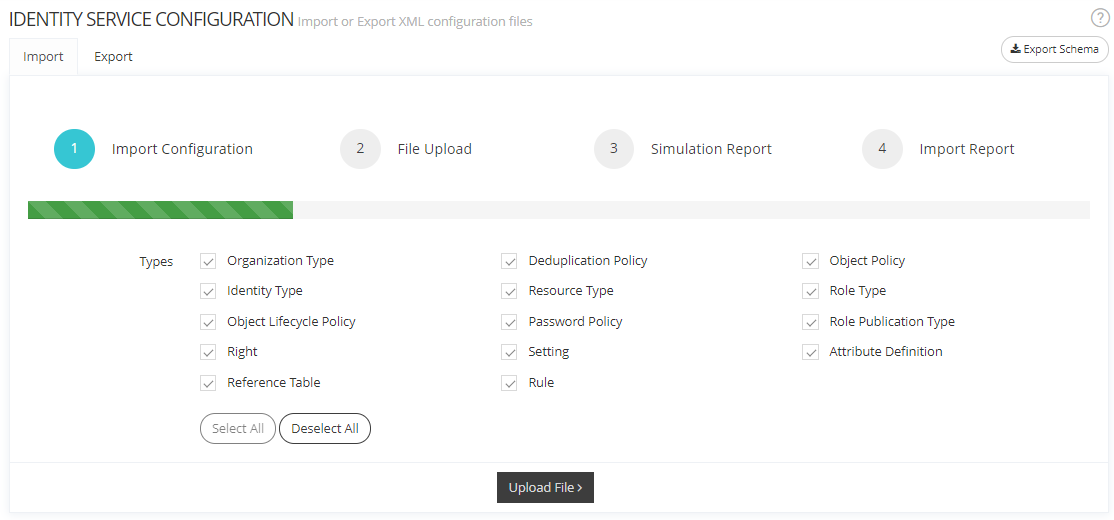
Select the service concerned then click on the "Upload File" button. If the XML file contains several configuration types, you can deselect all types and choose the concerned items if you don't want to upload all of them. |
|
How to manage a configuration element ?
By admin portal
|
Actions |
Preview example |
|---|---|
|
Display details of items by clicking on "View" button |
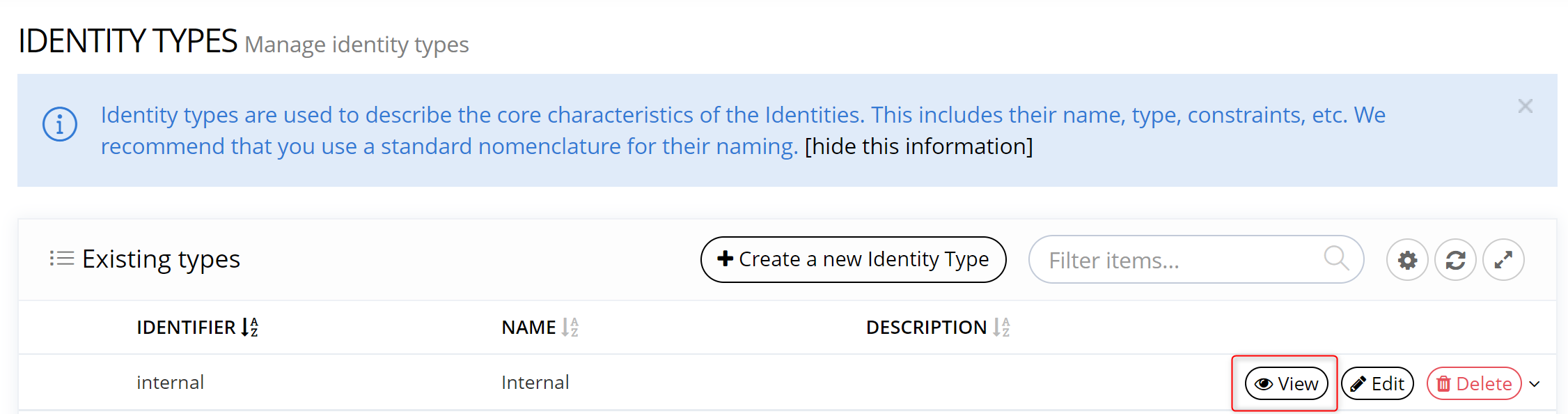
|
|
Modify an item by clicking on "Edit" button |
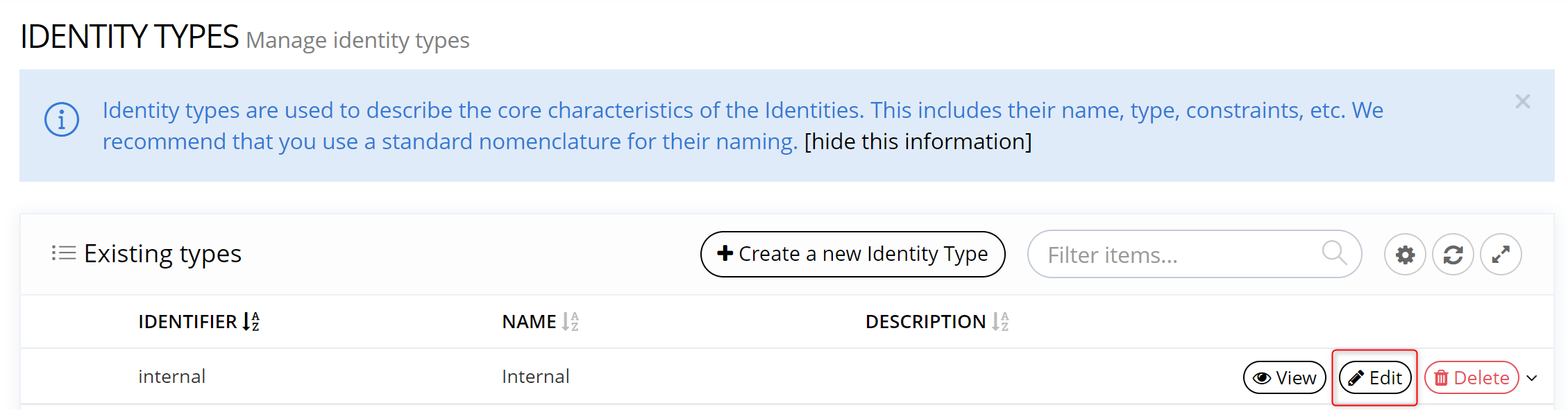
|
|
Delete an item by clicking on "Delete" button It is not possible to delete data model item if:
No control is performed on the use of an Identity Type in a Scope. No control is performed on the use of an Attribute in a rule. So be careful when deleting an Attribute or an Object Type |
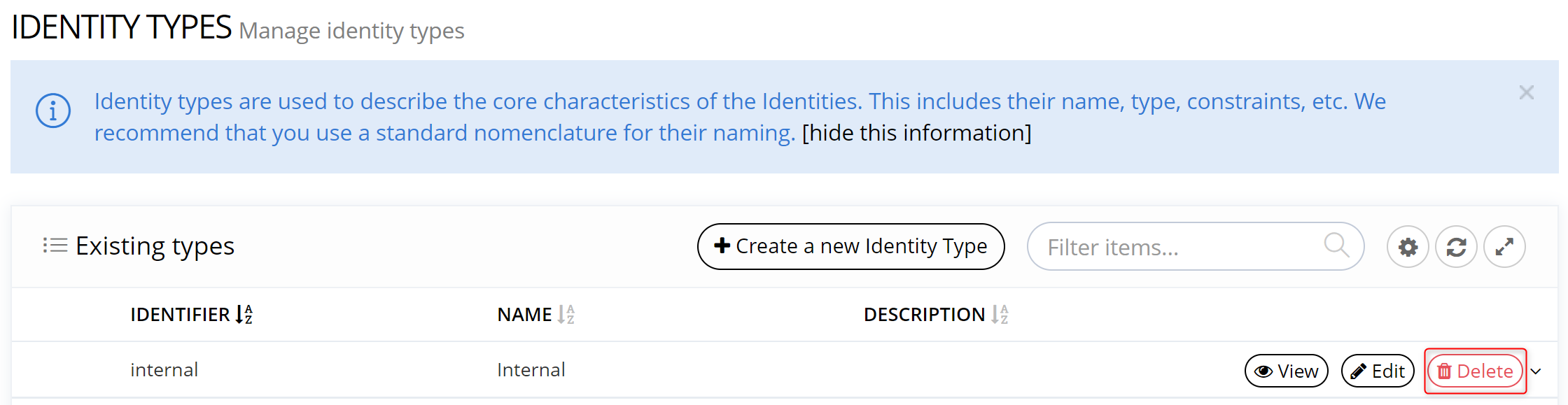
|
|
Filter items by typing id in the search bar "Filter items" |
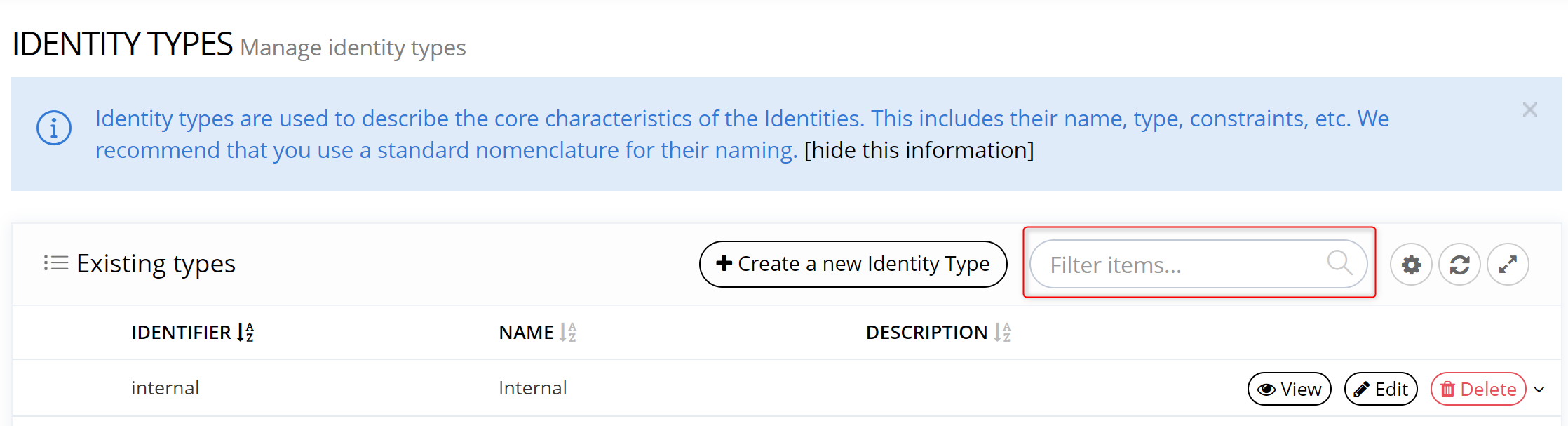
|
|
Toggle to batch mode (by clicking on cog button) in order to export/import the configuration or delete several items. |
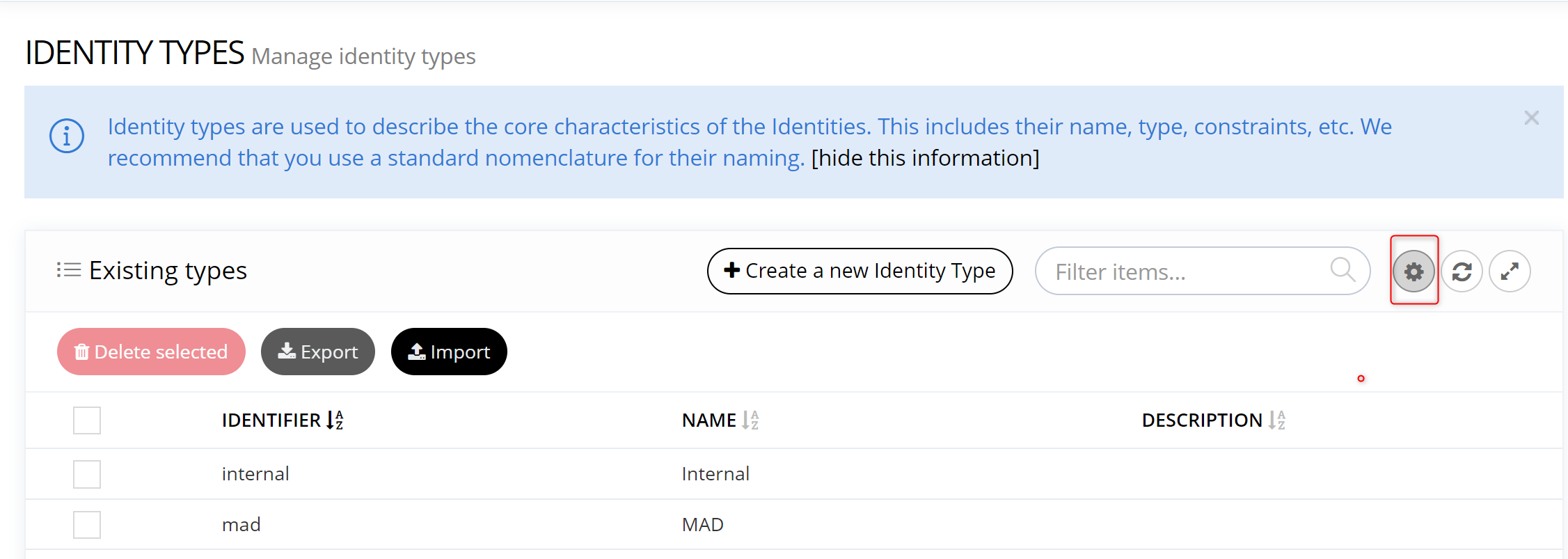
|
|
Refresh Data Model items by clicking on reload button |
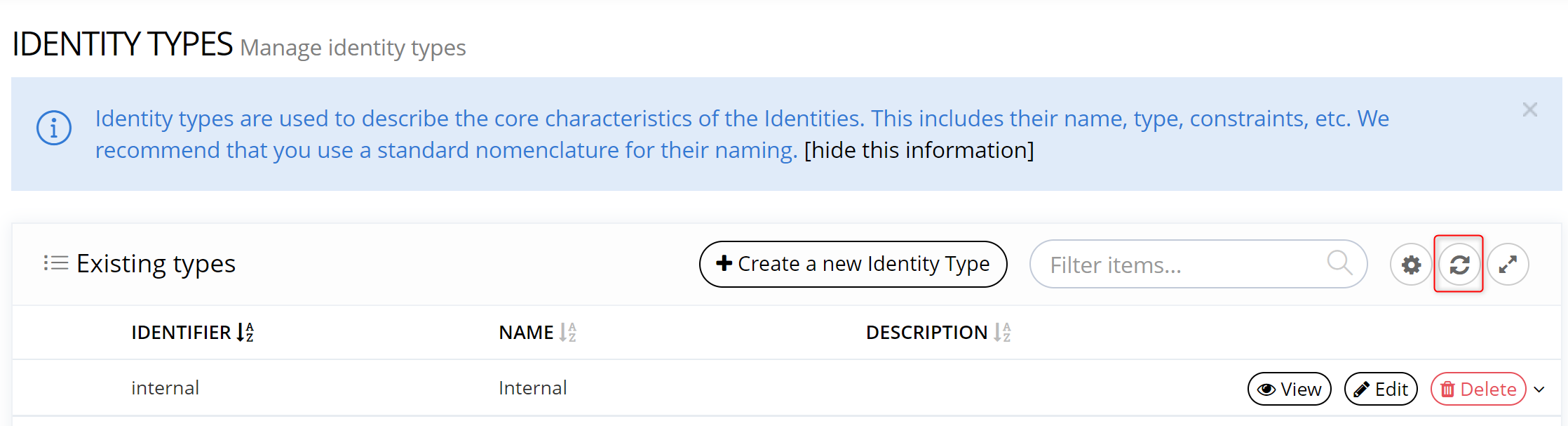
|
|
Expand page view by clicking on expand button |
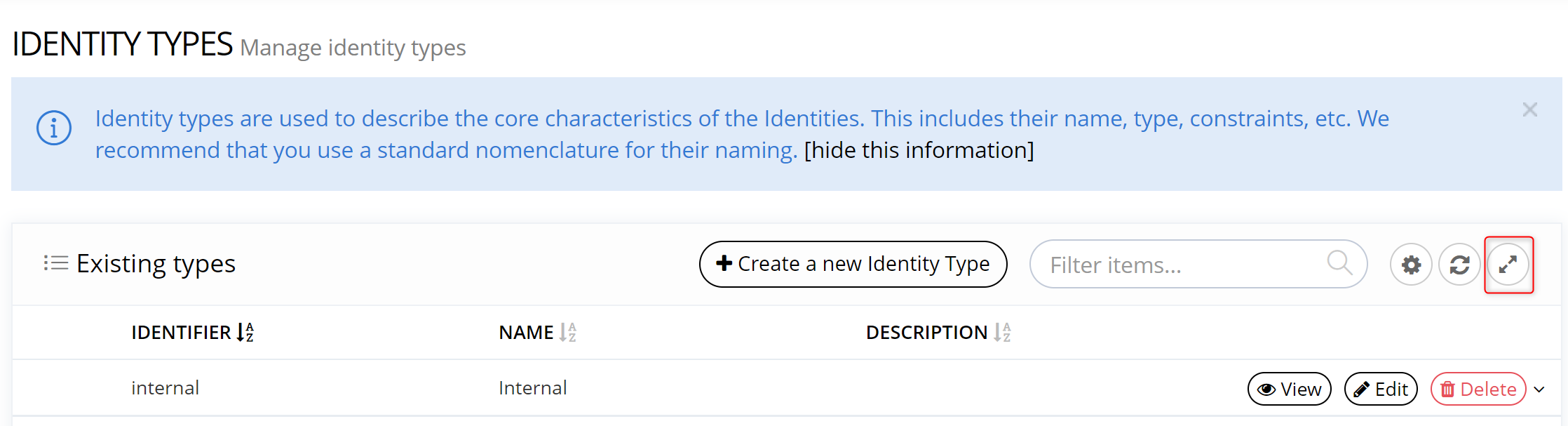
|
Read Next
- Common Configuration Concepts
- Data Model
Describes objects and their attributes like Identity, Organization, Roles, etc.