
-
Definition
-
Usage
-
Search in the Notification Sandbox
-
-
Filters
-
Configuration
-
Read Next
Access requires the AdmPortal:notification-sandbox permission.
Definition
The Notification Sandbox allows to search the notifications captured by the sandbox instead of being delivered to their real recipients.
It is mainly used on Pre-Production stacks: it blocks real communications while letting integrators validate the content that would have been sent.

Usage
You can access the Notification Sandbox page by clicking on "Notification" → Sandbox
When the sandbox captures a notification, that notification is not delivered: no email is sent, no SMS reaches the provider. The capture stores the message exactly as it was rendered, so the content displayed is the content the recipient would have received.
Some event types are never captured, whatever the configuration, because they carry credentials, one-time secrets or enrollment links:
AM_OTP
CITADEL_ACCESS_CODE_CREATION
CITADEL_MYMFA_DEVICE_ENROLLMENT_LINK
CITADEL_MYMFA_UNLOCK_PIN_CREATION
and every event type starting with CITADEL_PASSWORD_ or CITADEL_PUBLIC_.
These are always delivered normally.
Event variables whose name denotes a secret are masked with ******* in the stored content and subject.
Search in the Notification Sandbox
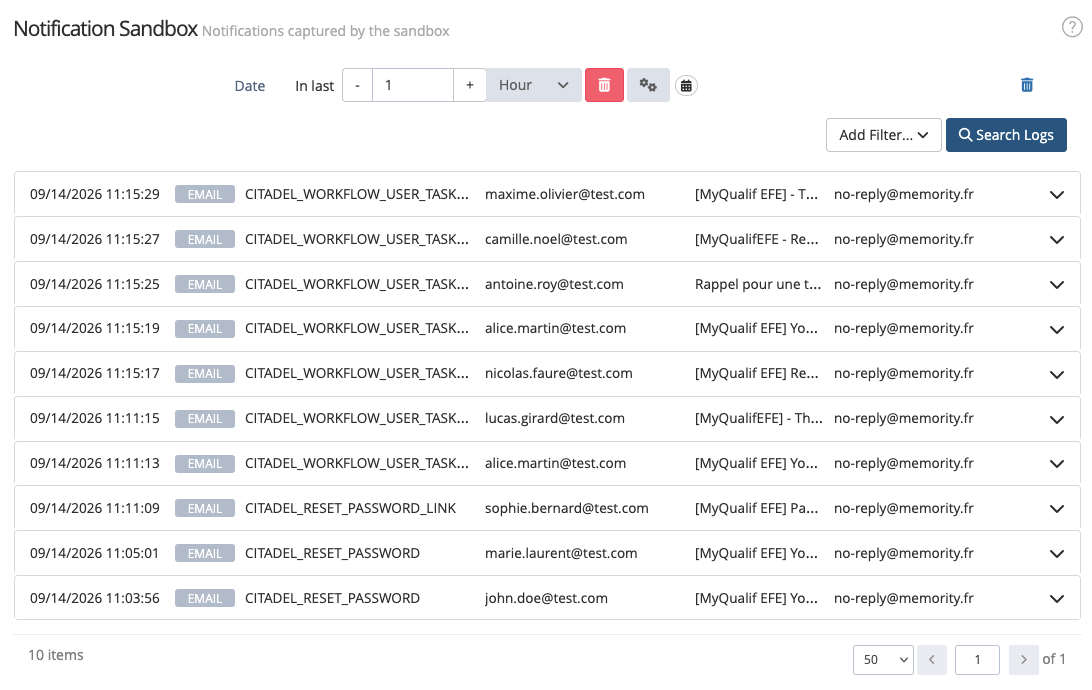
The Notification Sandbox page provides a list of captured notifications organized in reverse chronological order (more recent captures are displayed first). By default, when opening the page, the search covers the last day.
|
Actions |
Description |
Preview |
|---|---|---|
|
Add filter |
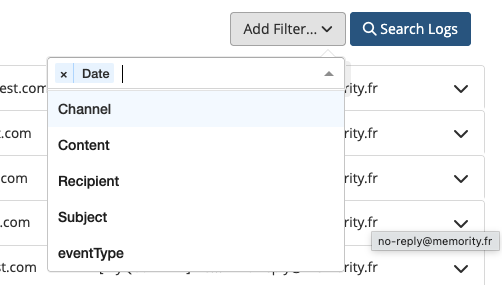
You can add one or several filters to search more precisely for a captured notification by clicking on the "Add Filter..." button. |
|
|
|
Filters will be added at the top of the page. You can delete one or several filters by clicking on the displayed trash icon on each line. |

|
|
Search for captured notifications |
The results are displayed according to the filters. Each line summarises the capture: Date, Channel, Event type, Recipient, Subject and Sender. |
|
|
View a captured notification |
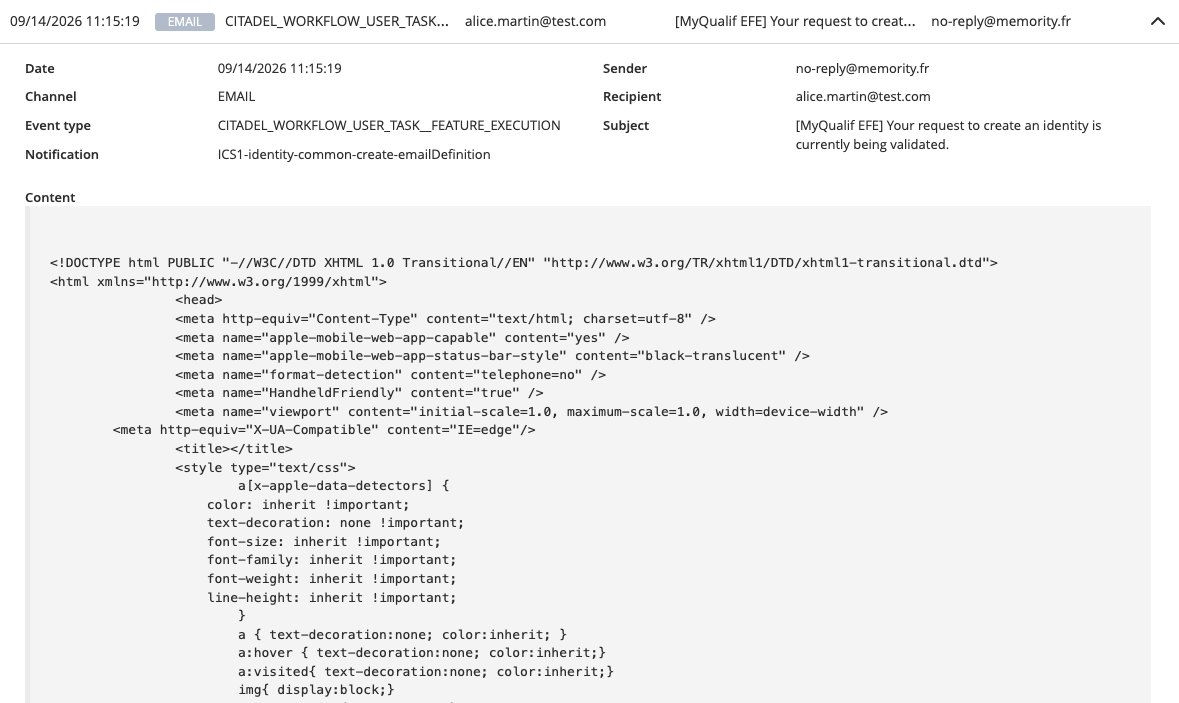
You can view details of a capture by clicking on the chevron displayed on the line. The detail panel shows the Date, Channel, Event type, Notification, Sender, Recipient, Cc, Bcc, Subject, and the full rendered Content. |
|
Filters
|
Name |
Type |
Description |
|---|---|---|
|
Date |
Date & time |
Allows to search by date or by period. Defaults to the last day. |
|
Channel |
Enum |
The delivery channel of the captured notification (EMAIL, SMS). Several values can be selected. |
|
Event type |
Enum |
The notification event type that triggered the notification. Several values can be selected. |
|
Recipient |
Enum |
The address the notification would have been delivered to. Several values can be selected. |
|
Subject |
Enum |
The subject of the captured email. Several values can be selected. |
|
Content |
String |
Searches within the rendered content of the notification. |
Configuration
The sandbox is configured per tenant with two Settings on the Notification (NTF) service:
|
Setting |
Description |
|---|---|
|
|
|
|
|
The notification definition identifiers the mode applies to. Empty by default. |
To capture everything, set ntf.sandbox.mode to BLACKLIST and leave ntf.sandbox.notificationIds empty.